FlowPro NG learns about dangerous addresses from several sources: Threat Intel, the IDS, the honeypot and Scenarios. The Network Protection module of version 2.1 turns that knowledge into blocking. You define a list once and it is enforced in several places: on MikroTik routers and on servers with FlowPro agent (addresses) and on the DNS servers of FlowPro (domains). This guide covers both.
What You Need
- A Security or Enterprise licence with the Network Protection add-on. DNS Protection is part of it. The add-on is priced on request, write to us.
- For routers: a MikroTik with RouterOS 7, outbound HTTPS (port 443) to FlowPro NG and the right time on the router.
- For servers: a firewall managed by FlowPro NG, see the guide FlowPro agent and Firewall.
- For DNS Protection: a separate machine or virtual machine with Debian 12+ or Ubuntu 22.04+, ideally two.
- For the monitoring mode, NetFlow / sFlow flows, see Collecting NetFlow.
Address Lists
Step 1: Prepare a List and the Exceptions
In Network Protection → Address lists choose New list. Add addresses by hand or switch on automatic sources:
| Source | What it adds |
|---|---|
| By hand | addresses and networks you enter or import, optionally with a validity |
| Scenarios | addresses added by a scenario action |
| Threat Intel | indicators seen recently with at least the chosen score |
| IDS | sources of recent IDS alerts of the chosen severity |
| Honeypot | attackers recently seen by the honeypot |
| Downloaded block lists | the content of the block lists FlowPro NG downloads in Threat Intel |
Then open the Exceptions tab and add the addresses that must stay reachable whatever happens: where you manage the routers from, your office, the monitoring service, a supplier. An exception never gets onto any list, not even when somebody adds it by hand. Our networks from Settings and the addresses of FlowPro NG itself are left out automatically.
Step 2: Monitor First
A new list does not have to block right away. In the mode Monitor only the list is empty on routers and servers and FlowPro NG only counts in the flows what it would have blocked. The tab Hits in Traffic shows incoming and outgoing connections and your devices that connect to the listed addresses.
When the numbers look right, switch the list to blocking.
Step 3: Connect a MikroTik Router
FlowPro NG never writes to a router and needs no credentials for it. A small script runs on the router and asks regularly whether the lists have changed.
- In Network Protection → MikroTik choose Add router, select the lists and the interval (15 minutes suits most networks).
- FlowPro NG shows the installation script. It contains the token of the router and is shown only once, so copy it now.
- Paste the whole script into a terminal of the router as a user with full rights.
- Check the result. In FlowPro NG the router changes to the state "OK" within a minute. On the router:
/ip firewall address-list print count-only where list~"^fpd-"
/log print where message~"FlowPro"
The lists alone block nothing. The rules are ready to paste in the detail of the router; for the list fpd-blocklist they look like this:
/ip firewall raw add chain=prerouting src-address-list="fpd-blocklist" action=drop comment="FlowPro: from fpd-blocklist"
/ip firewall raw add chain=prerouting dst-address-list="fpd-blocklist" action=drop comment="FlowPro: to fpd-blocklist"Step 4: Assign the List to Servers
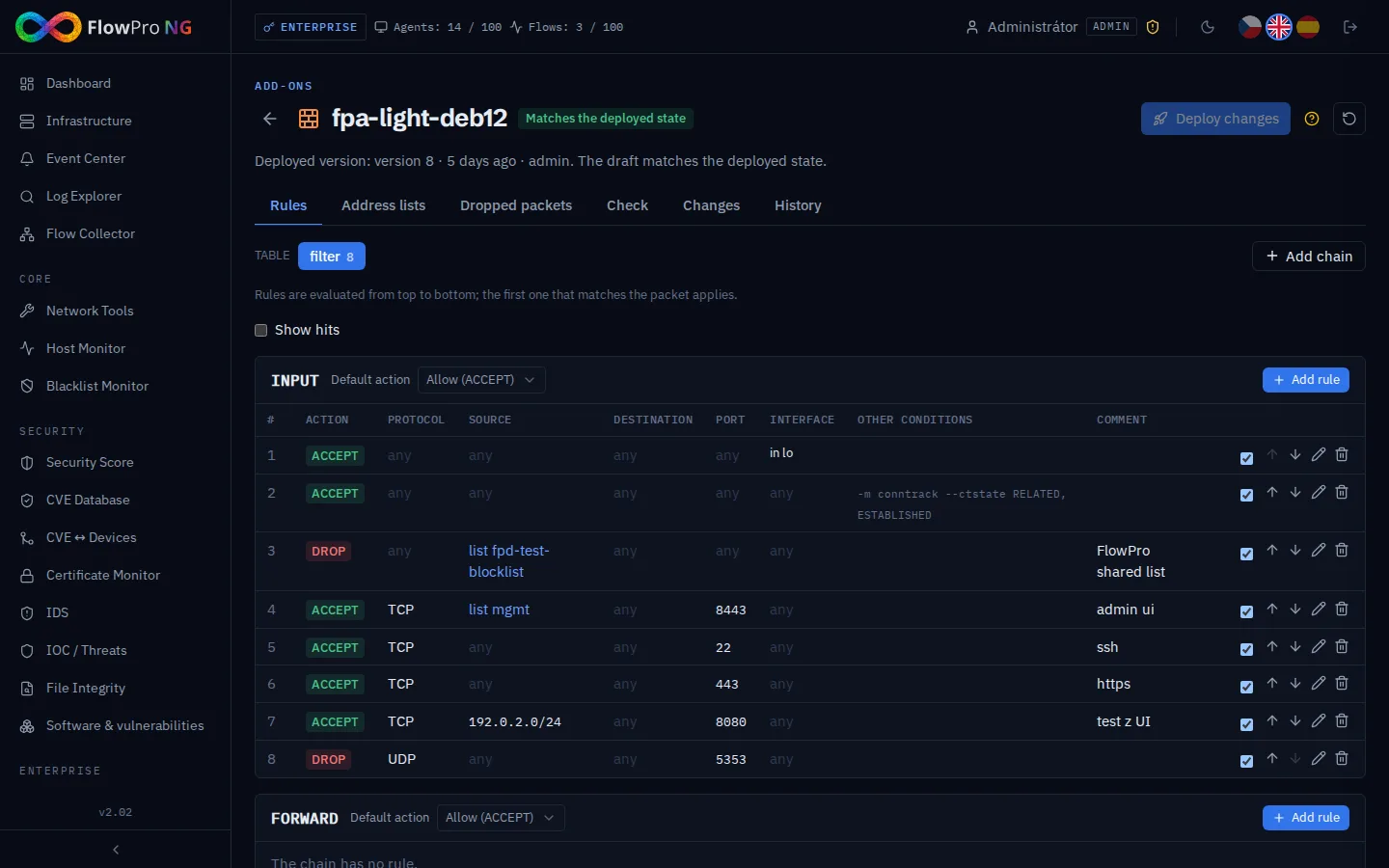
On a server with a managed firewall a shared list is an ipset of the same name (fpd-<short name>) and a rule that drops incoming traffic from its addresses. You assign the list in its detail; the set and the rule go through the usual deployment with confirmation, and the addresses themselves are then kept current without another deployment.
DNS Protection
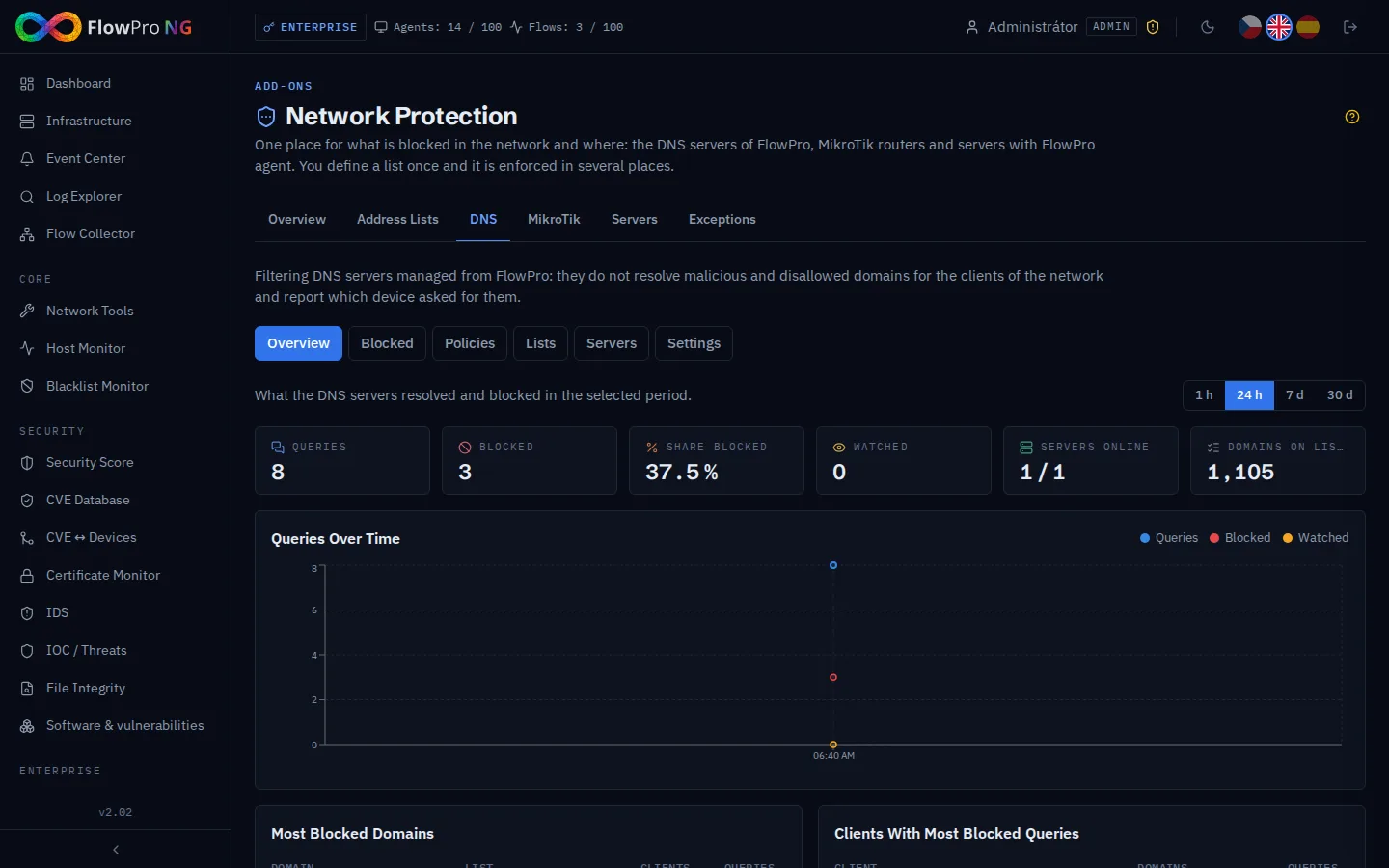
DNS Protection stops a device before it connects: the DNS servers of FlowPro do not resolve malicious and unwanted domains and report which device asked for them.
Step 1: Add a DNS Server
On the DNS → Servers tab choose Add DNS Server. It generates one command with a one-time token; run it on the machine as root. The machine needs outbound HTTPS (443) to FlowPro NG, outbound DNS (53) to the internet, inbound port 53 from your networks and a free port 53. The server takes its whole configuration from FlowPro NG.
Step 2: Point the Clients to It
Set the addresses of the FlowPro DNS servers as DNS in DHCP or on the router. Run two servers and give the clients both. Do not give a public resolver as the backup DNS; the clients would go around the protection.
Step 3: Set the Policies and Lists
A policy says which lists of domains apply to the clients of given networks, and its mode is Block, Watch only or Off. A list takes effect only when it is ticked in a policy. Inside one policy an allow list wins over the block lists. The tool What Happens to a Query answers for a domain and a client address which policy applies and how the servers will answer.
What to Check Regularly
- Network Protection → Overview: a router that stopped asking, a list whose source cannot be read, a server out of sync.
- DNS → Blocked: the queries decided by one of the lists. The Allow Domain button adds a domain to Own Allowed Domains.
- Event Center: a device that asks for a domain of a list with a severity raises an event with the source DNS Protection.
Common Pitfalls
- The router logs "no answer" or the certificate cannot be checked: check whether the router reaches port 443 of FlowPro NG, its clock is right and the token is the current one.
- Something you need is blocked: add the address to the exceptions; the router picks the change up with its next question. Domains that must always resolve belong to Own Allowed Domains.
- Internal DNS (Active Directory): when an internal DNS forwards the queries to the FlowPro DNS servers, the policies see it as the client, not the single devices.
- Encrypted DNS in browsers (DoH, DoT): it goes around the filter. Tick the lists "Browser Signals" and "Public DoH / DoT Resolvers" in a policy.
- IPv4 only: address lists support only IPv4 and hold at most 65,536 addresses.
You can try FlowPro NG for free; the other news of the release is in What's new in FlowPro NG 2.1.
- DNS
- MikroTik
- Threat Intel
- FlowPro agent
- DoH