Contents
Security monitoring helps only when the right person learns about a problem in time. It matters just as much that they do not learn about everything: somebody who gets hundreds of messages a day stops reading them. In FlowPro NG 2.1 this is decided in one place. Every module writes its findings to the Event Center and FlowPro NG sends the messages from there. This guide goes through the setup step by step; the same procedure is shown in the video guide to account security and notifications.
What You Need
Notifications are part of all licences. They are set in Settings → Detection & alerts → Notifications. The tab has five parts:
| Part | What it is for |
|---|---|
| Who is told what | the matrix: events in rows, recipient groups and shared channels in columns |
| Recipients and groups | people and the groups they belong to |
| Channels | the routes the messages take |
| Rules | hand-written rules for what the matrix cannot express |
| Sent messages | every message for every recipient with the result of the delivery |
Until there is somebody to send to, FlowPro NG writes to nobody.
Step 1: Create a Channel
A channel is the route a message takes: e-mail, Telegram, Slack, Teams or a webhook of another system. For e-mail you enter the mail server, the sender and the addresses. Try the channel right away with the Test button; it sends a sample message and the result is written to the history of the channel.
The very first channel gets a rule "high and critical severity of everything" at once, so the serious events start arriving without further settings. You can change or delete the rule.
Step 2: Add Recipients and Groups
A contact is a FlowPro NG user or somebody outside it, such as a supplier or an on-call service. A contact needs an e-mail or a Telegram chat ID; with both, the message goes both ways. You put contacts into groups, for example Network, Security or Management. Every member of a group gets a message of their own.
- Send messages switched off pauses a contact (holiday, leaving) without taking it out of the groups.
- A group without members reaches nobody; the matrix marks such a column.
- Personal messages need a channel of that kind switched on: an e-mail channel for e-mails, a Telegram channel for Telegram.
Step 3: Set Who Is Told What
The default tab Who is told what is a matrix. The rows are modules; click a module to unfold its event types. The columns are recipient groups and shared channels. Click a cell and choose from which severity the message is sent and whether at once or in the daily digest.
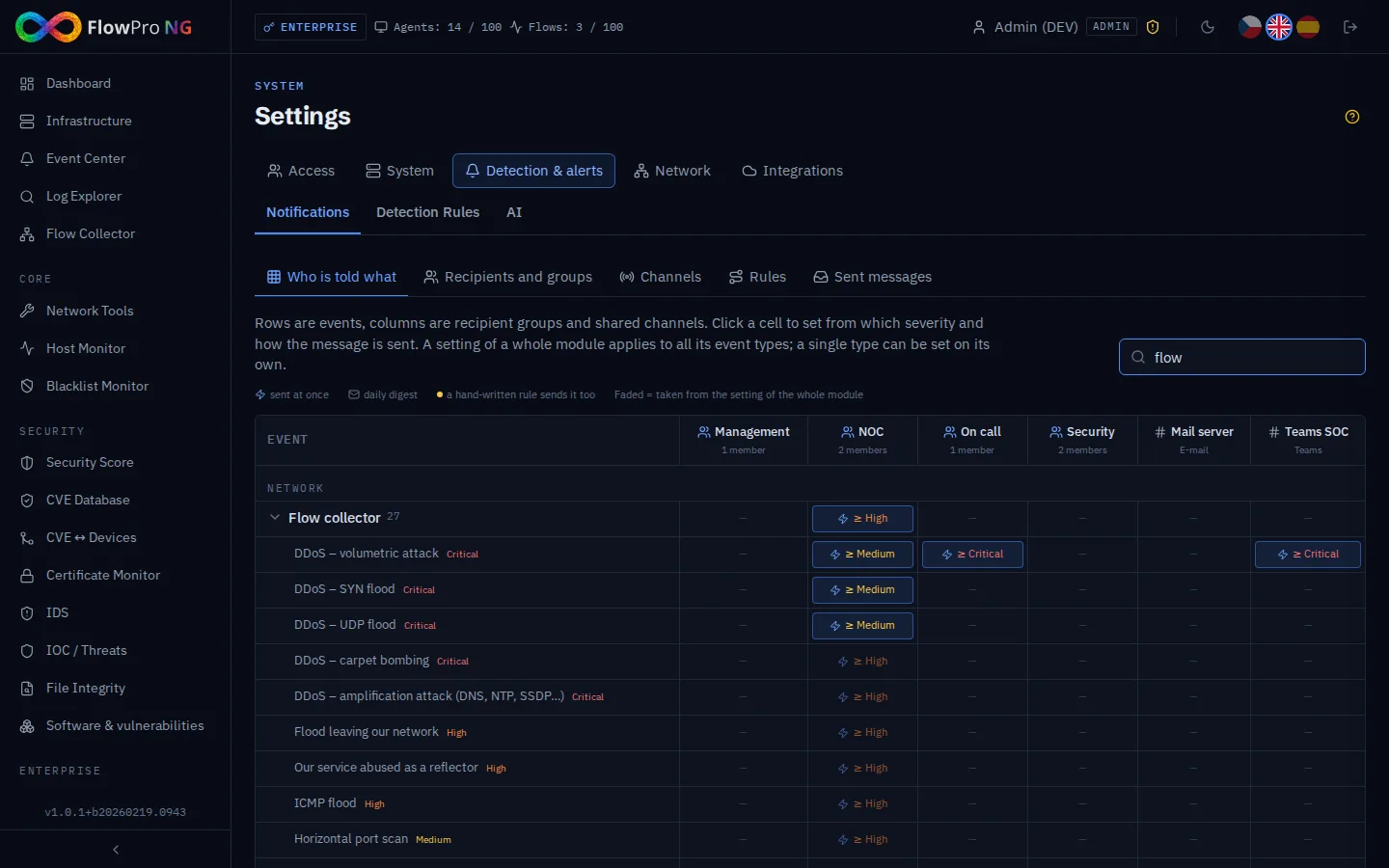
The cell of a whole module applies to all its event types. The cell of a single type adds to it: for example the whole Flow Collector from High, but DDoS already from Medium. In the matrix you see at once whether something important was left without a recipient.
Step 4: Rules for Special Cases
What the matrix cannot express you write as a rule on the Rules tab. A rule has:
- the event sources (nothing selected means all of them) and optionally only single event types,
- the lowest severity,
- delivery immediately or as a daily digest at the chosen hour,
- the channels and the recipient groups,
- quiet hours, for example 22:00–07:00, when only critical events are sent,
- escalation: when nobody acknowledges or closes the event in the Event Center within the set number of minutes, the next group or channel is told,
- a message limit: at most the set number of different events an hour; after that one notice is sent and the rest stays in the Event Center.
The same message is not repeated to the same channel within 30 minutes. Whoever was told about a problem is also told that it is over, for example at the end of an outage or an attack.
Step 5: Check the Delivery
The part Sent messages lists every message for every recipient: when, to whom, why and with what result. When a delivery fails, for example during an outage of the mail server, FlowPro NG tries again after 1, 5, 15 and 60 minutes. Then it marks the message as not delivered and you can send it once more by hand. The records are kept for 30 days.
Common Pitfalls
- Nothing arrives: rules work only with events raised after they were saved; history is not sent in retrospect. Also check whether the group has members and whether a channel of that kind exists.
- A message came late or not at all: look at the result of the delivery in Sent messages.
- Only some messages arrive at night: quiet hours let only critical events through. The time of the quiet hours and of the daily digest follows the time zone of the system.
- The link in a message does not work: the link to the event needs the public address of FlowPro NG to be set.
- After the update the list holds rules marked as taken over: the update converted the previous settings of the modules into them, so the same messages arrive as before. You can change or delete them.
How to secure access to FlowPro NG itself is covered in Securing Access to FlowPro NG. You can try FlowPro NG for free.
- Telegram
- Slack
- Teams
- Webhook