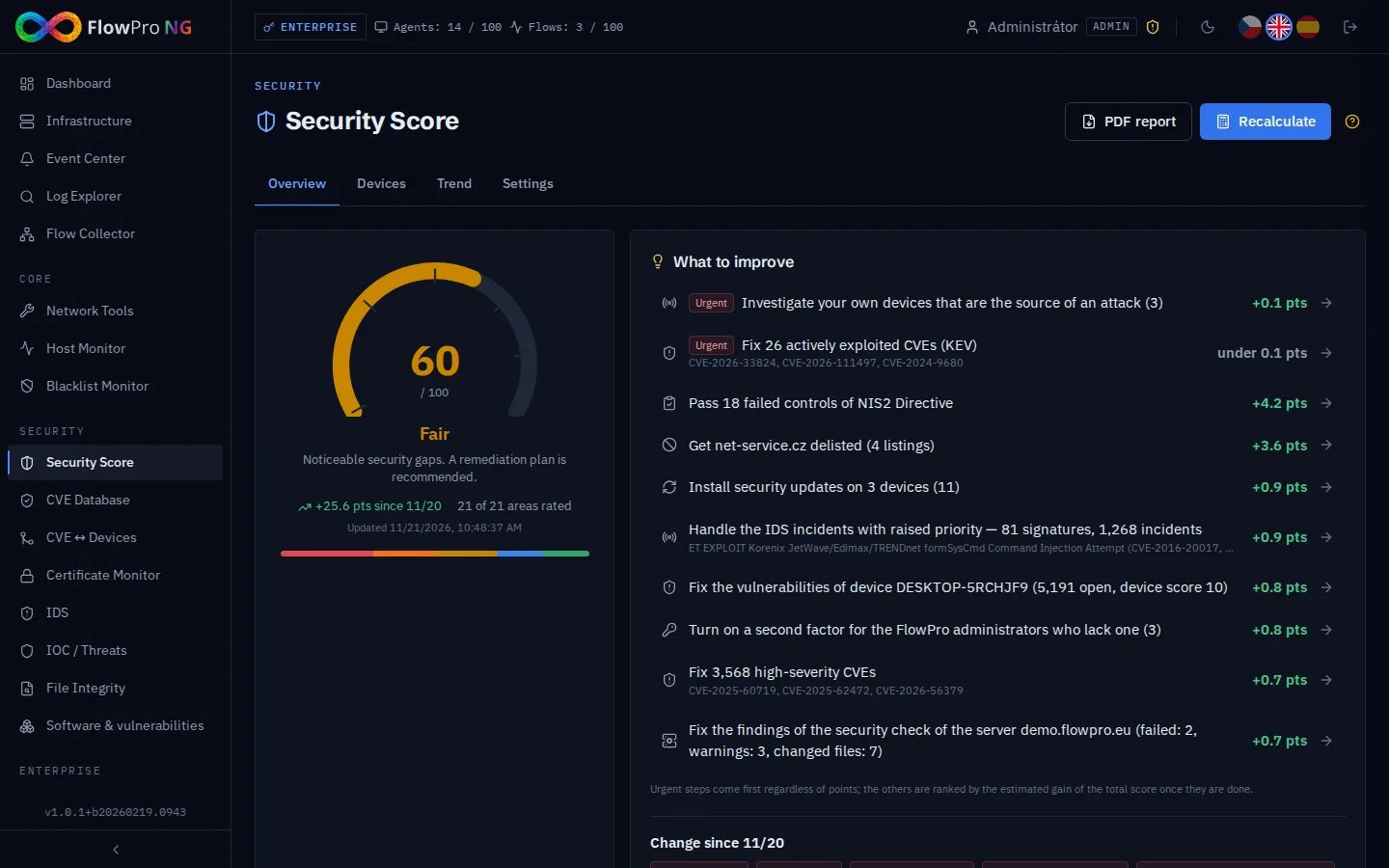
The video follows the first setup of FlowPro NG. It shows two things worth doing right after the installation: adding a second verification method to your account, and deciding who FlowPro NG writes to, and when. Below is the same procedure as text.
1. Secure your account
An account protected by a password alone is not enough. After you log in, FlowPro NG reminds you of that with the Secure your account window. Choose Secure account and the settings of your account open.
Two-factor authentication
- Choose Activate 2FA.
- Scan the QR code in an authenticator app on your phone, such as Google Authenticator or Microsoft Authenticator.
- Type in the six-digit code from the app and confirm.
- Keep the backup codes in a safe place. Each one works only once, and you use them when you do not have your phone at hand.
From then on, logging in with the password also asks for the code from the app.
Passkey
A passkey signs you in without a password, with your fingerprint, face or the PIN of your device. Choose Add, name the key, confirm with your password and finish creating it in the browser. On the login page you then just choose Sign in with a passkey.
Rules for all users
In Settings → Access → Security an administrator can require the second verification method from all administrators, or from all users. The same place holds the minimum password length and the session length.
Who signed in
The Users tab shows the login history: who signed in, when, from where and how. The failed attempts are listed below it.
Details are in the guide Securing access to FlowPro NG.
2. Set up notifications
Notifications are in Settings → Detection & alerts → Notifications. Until there is somebody to send to, FlowPro NG writes to nobody.
Channel
A channel is the route the messages take. For e-mail you enter the mail server, the sender and the addresses. Besides e-mail there are Telegram, Slack, Teams and webhook. Try the channel right away with the Test button.
Recipients and groups
A contact is a FlowPro NG user or somebody outside it, such as a supplier or an on-call service. You join contacts into groups, for example Network administrators, Security or On call. Every member of a group gets a message of their own.
Rule
A rule decides what is sent to whom:
- the event sources (nothing selected means all of them),
- the lowest severity,
- delivery immediately or as a daily digest,
- the channels and the recipient groups,
- optionally quiet hours, when only critical events are sent.
The same message is not repeated to the same channel within 30 minutes.
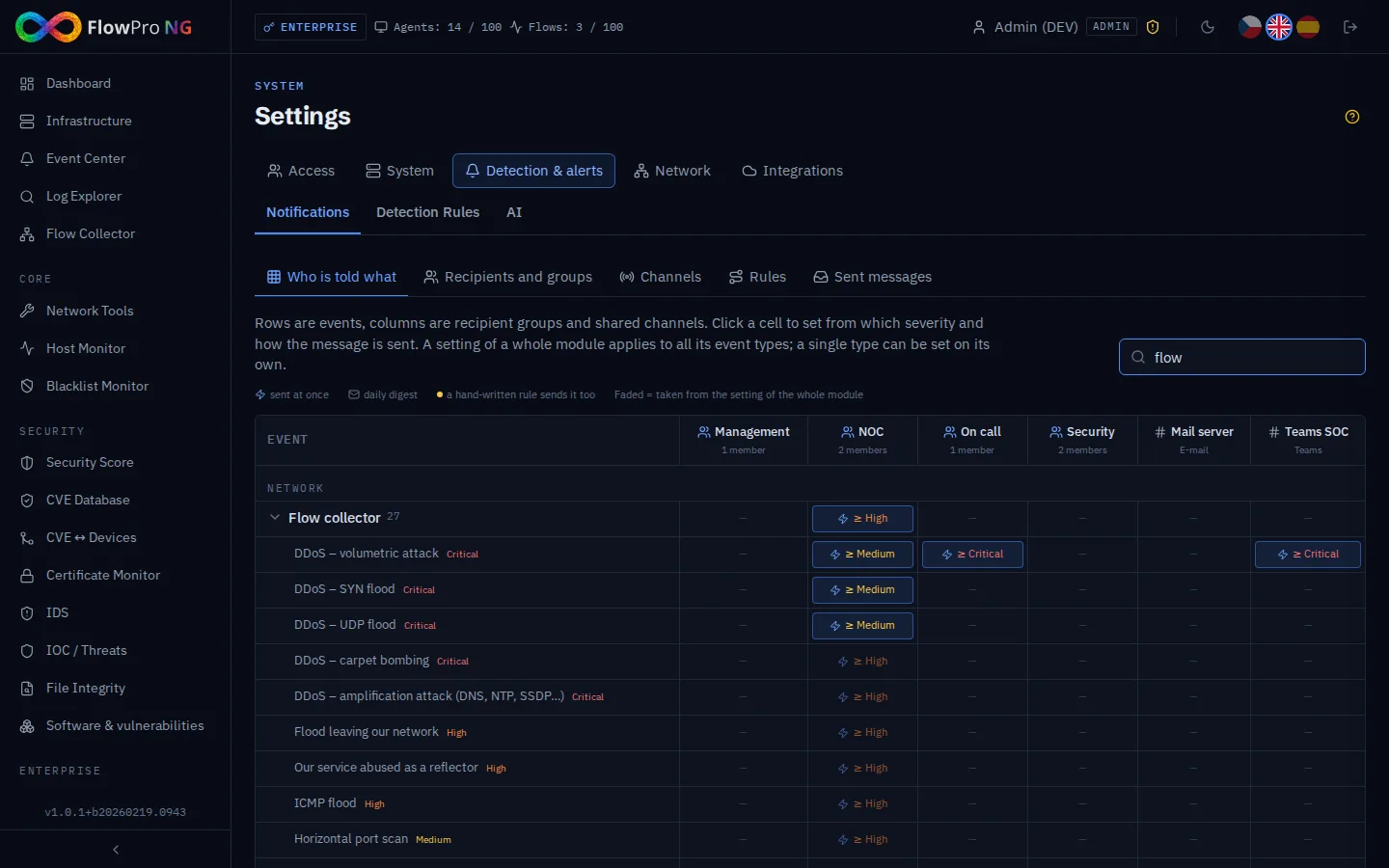
Who is told what
The default tab shows clearly which events go to whom. You see at once whether something important was left without a recipient.
Sent messages
Here you find every message that was sent, with its delivery status. When a delivery fails, FlowPro NG tries again after 1, 5, 15 and 60 minutes. The records are kept for 30 days.
- Video
- 2FA
- Passkey
- Notifikace