Contents
A security monitoring system sees your entire network: server logs, network flows, vulnerabilities, the device inventory and penetration test results. To an attacker, that is a map of your environment, so access to FlowPro NG itself deserves the same care as access to a domain controller or a firewall. Protection rests on two layers: who may sign in (accounts, passwords, a second factor) and where the server can be reached from at all (the firewall). This guide covers both.
Signing In: Password, 2FA or Passkey
FlowPro NG offers three sign-in methods that can be combined:
| Method | How it works | When to use it |
|---|---|---|
| Password | E-mail and a password that must meet the password policy | Always available, even when accessing via an IP address |
| Password + 2FA (TOTP) | After the password, a six-digit code from Google or Microsoft Authenticator | The recommended minimum for every account |
| Passkey | Passwordless sign-in with a fingerprint, face, device PIN or security key | The most secure and also the most convenient option |
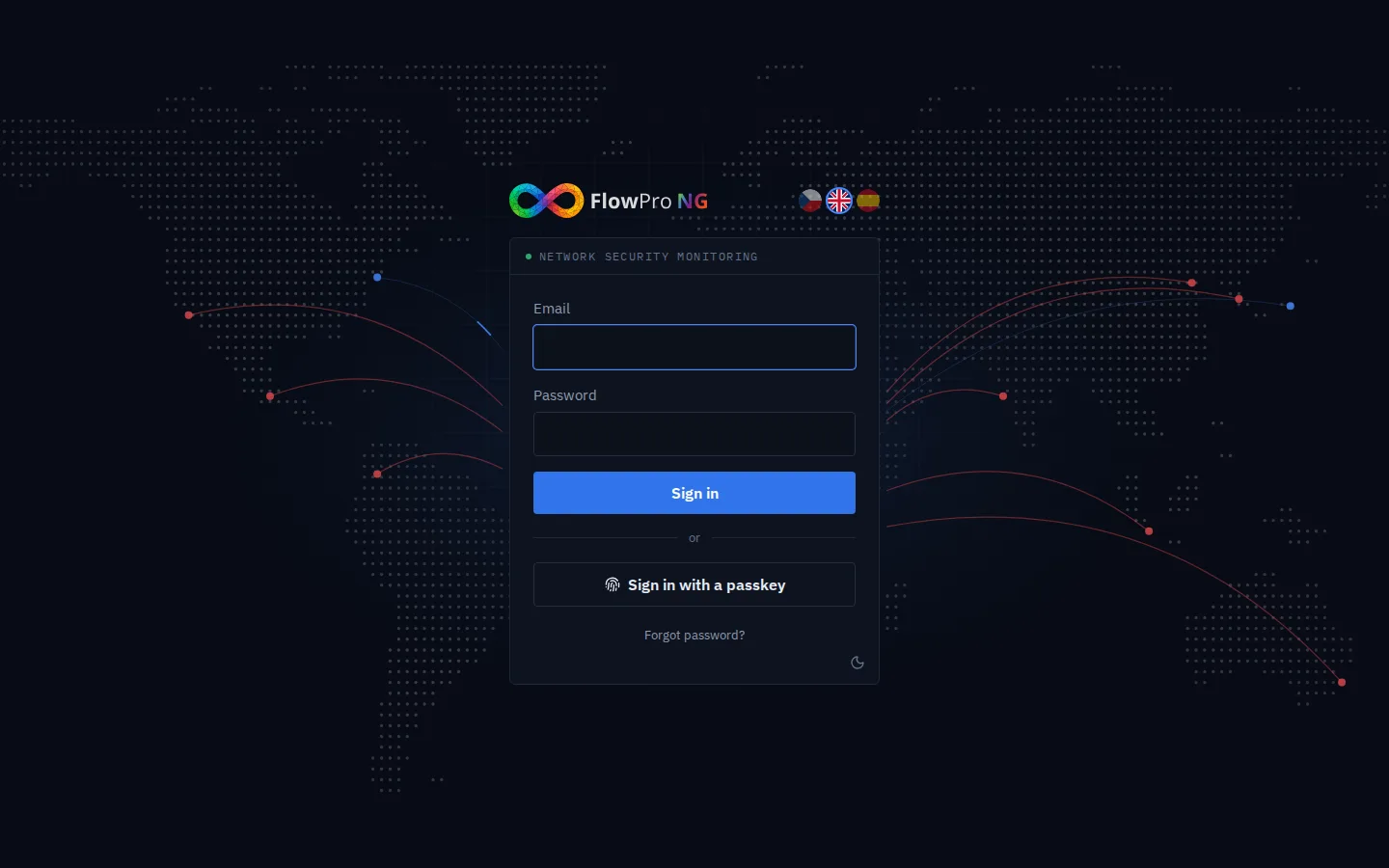
FlowPro NG answers an unknown account and a wrong password with the same message, so an attacker cannot find out which accounts exist. The number of sign-in attempts from a single IP address is limited, and every failed attempt is recorded (see below).
Two-Factor Authentication (TOTP)
Each user turns on the second factor in Settings → Access → Users (administrators in the user editor of their own account). FlowPro NG shows a QR code for Google Authenticator, Microsoft Authenticator or any other TOTP app. After the first code is verified, you receive backup codes: keep them somewhere other than your phone, they help if you lose it. From then on, the current code from the app is required after the password. Knowing the password alone is not enough to sign in.
Passkeys
A passkey is a modern replacement for passwords based on the WebAuthn / FIDO2 standard. The private key never leaves your device: Windows Hello, Touch ID or Face ID, Android, a password manager (iCloud Keychain, Google Password Manager, 1Password…) or a hardware security key such as a YubiKey. Nothing that could be intercepted and reused is ever sent to the server.
The main benefit is phishing resistance. The browser uses a passkey only on the exact domain it was created for. A fake page that looks like the FlowPro sign-in never gets it, even if the user is fooled. A passkey also counts as full two-factor authentication: the key is stored on the device (possession) and unlocked with a fingerprint, face or PIN.
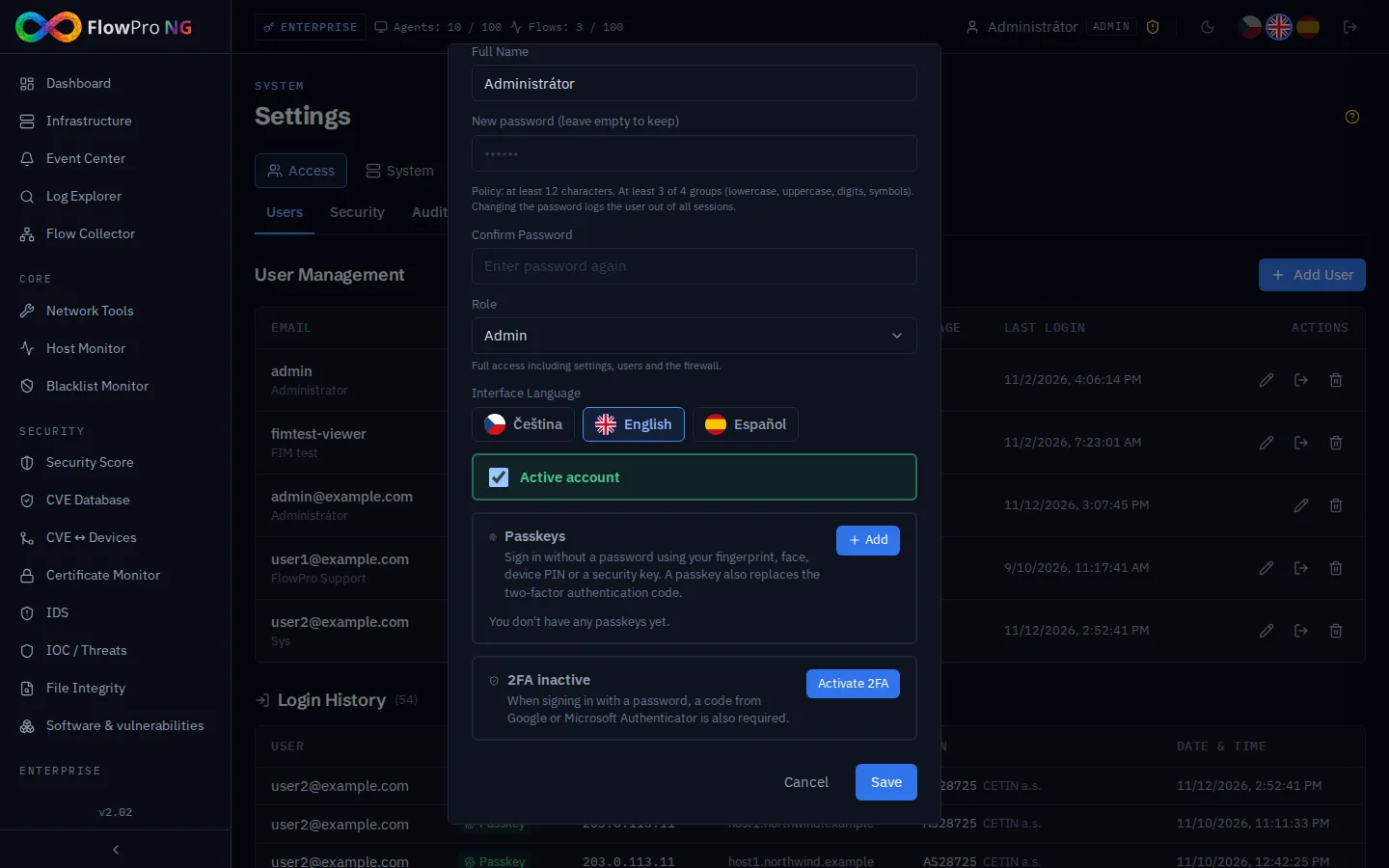
Adding a passkey requires your current password. We recommend registering two passkeys (for example a phone and a laptop) or a passkey plus 2FA, so that losing one device does not lock the account. If a device does go missing, an administrator removes the user's passkeys in the user editor.
Security Policy: Rules for Everyone
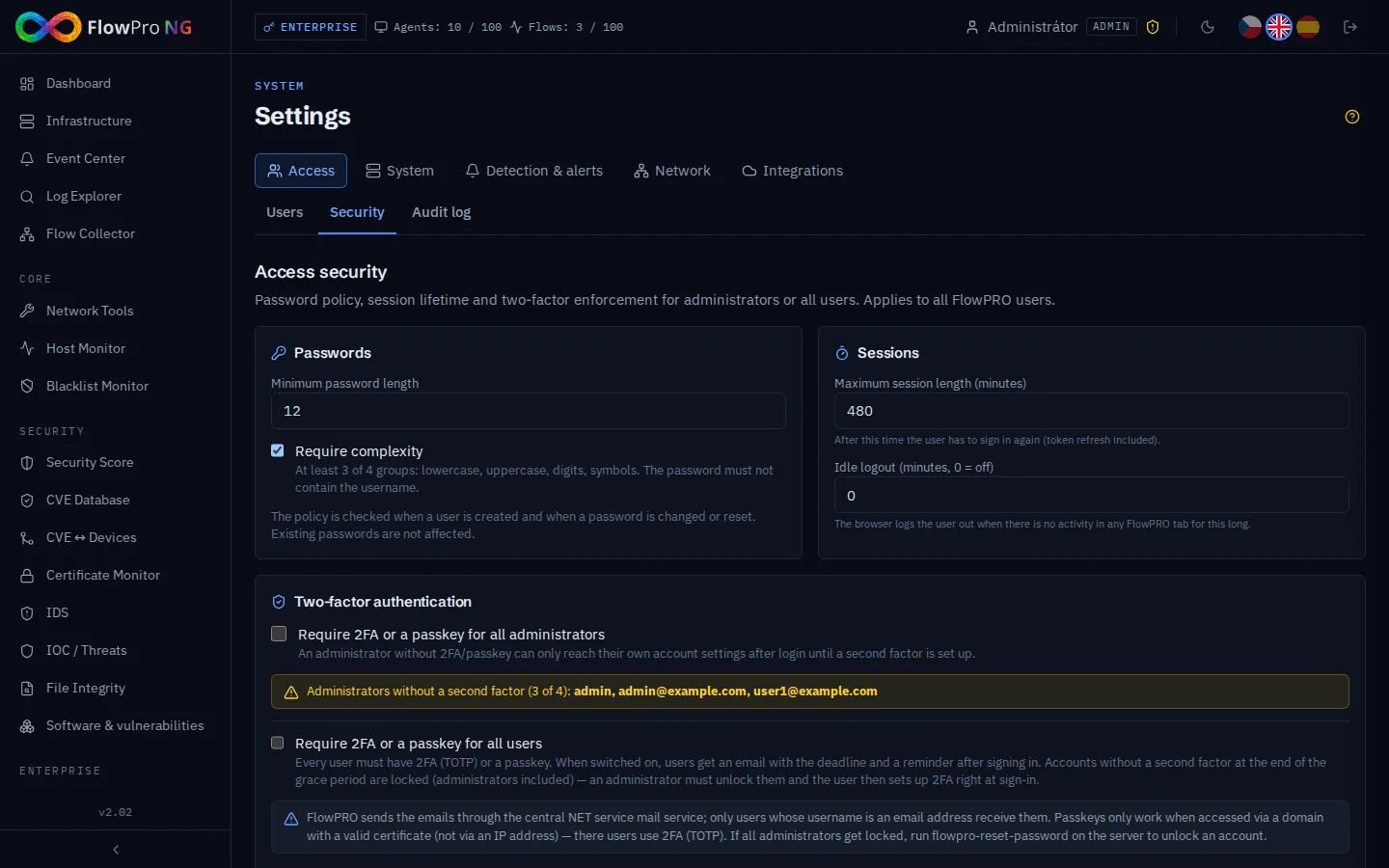
An administrator sets the rules for all accounts in Settings → Access → Security:
- Passwords: minimum length (12 characters by default) and complexity, i.e. at least 3 of 4 character groups (lowercase, uppercase, digits, symbols). The password must not contain the username.
- Sessions: maximum length (8 hours by default, then the user must sign in again) and sign-out after inactivity.
- Second factor enforcement: for all administrators, or for all users with a transition period (14 days by default). Users without a second factor receive an e-mail with the deadline and a notice after signing in. After the deadline their account is locked until an administrator unlocks it. A second factor can also be required for an individual user.
Changing a password or role, or deactivating an account, immediately ends all of that user's open sessions. If a laptop is lost, just click Log out of all sessions in the user list. The last active administrator cannot be deleted or deactivated, so the system cannot be locked out by mistake. And if all administrators do end up locked, the flowpro-reset-password command on the server unlocks the account.
Who Signed In and Who Tried
Access security is not just something you set up, you also need to watch it. In Settings → Access → Users you will find:
- Sign-in history: who, when, from where (IP address with DNS name and provider) and with which method (password, password + 2FA, passkey).
- Failed sign-in attempts: the username entered (marked "does not exist" for unknown accounts), the reason (wrong password, wrong code, invalid passkey, locked account) and the IP address. After signing in, administrators see an overview of new failed attempts until one of them acknowledges it.
Every change in the administration is recorded in the Audit log (Settings → Access → Audit log): users and roles, the security policy, the firewall, API keys and more. Each entry has the time, user, IP address and what changed. Passwords and keys are never stored in the log. The Compliance module then evaluates the audit log and the password policy automatically as NIS2 and Czech Cybersecurity Act controls.
Firewall: Where FlowPro Can Be Reached From
Even the best password is useless if the sign-in page, SSH or the database can be reached from the entire internet. The FlowPro NG installer enables the server firewall (UFW) with a default policy of deny all incoming and opens only the ports FlowPro NG needs. So that the installation works right away in any network, these ports are open from anywhere. That is a good start, not the final state: after installation, narrow the sources down to the networks you actually connect from.
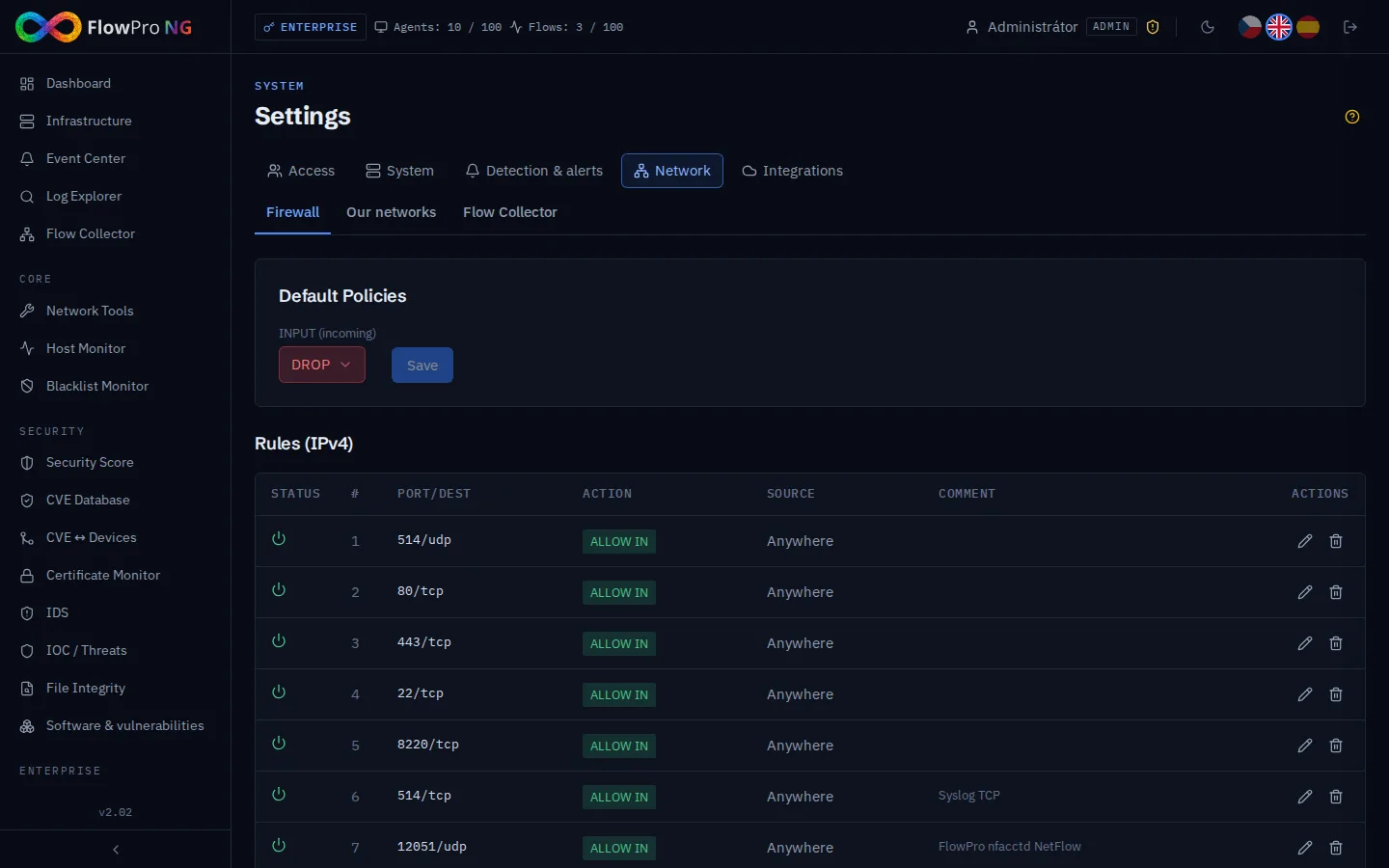
You edit the rules directly in the application in Settings → Network → Firewall: for each rule you set the port, protocol and source (an IP address or a network in CIDR notation). Here is an overview of the ports and our recommendations:
| Port | Service | Who needs it | Recommendation |
|---|---|---|---|
| 443/tcp | Web interface (HTTPS) | Administrators and analysts; machines during agent installation; IDS sensors | Internal networks, management network or VPN only |
| 22/tcp | SSH | Server administrators | Management IP addresses or VPN only |
| 8220/tcp | Fleet Server (agent management) | Machines running Elastic Agent | Only networks where agents run |
| 9200/tcp | Data from agents | Machines running Elastic Agent | The installer allows private ranges only; add remote agents by their specific address |
| 514/udp, 514/tcp | Syslog | Routers, firewalls, switches | Only the addresses of devices that send logs |
| 12051/udp | NetFlow / IPFIX | Flow exporters (routers, softflowd) | Only the addresses of the exporters |
| 80/tcp | Redirect to HTTPS, Let's Encrypt validation | Let's Encrypt when issuing and renewing a certificate | Open to the internet only for Let's Encrypt HTTP validation; otherwise internal networks are enough |
Why restrict the syslog and NetFlow ports too? The data arrives over UDP with no sender verification. Anyone who can reach the port could send forged logs: trigger false alerts, hide a real attack or fill up the disk. Restricting the port to your devices' addresses prevents that and costs you nothing.
The web interface cannot disable or reset the firewall: the application may run only the permitted rule management commands, and every change is written to the audit log. SSH is also guarded by fail2ban: after 5 failed attempts within 10 minutes, it blocks the IP address for one hour.
The Firewall at the Network Edge
The server firewall is the second line of defence. The first is your edge firewall or router:
- Do not forward FlowPro NG ports from the internet. Use a VPN for remote administration.
- If the server must be reachable from outside (for example for agents at branch offices without a VPN), allow only specific source addresses and only the required ports (8220 and 9200) at the edge. Never expose the web interface or SSH to the internet.
- Outbound traffic: FlowPro NG needs outbound HTTPS to
api.net-service.io(licensing, central threat and vulnerability databases, e-mails) and torepo.net-service.io(updates). NET service remote support uses an outbound VPN tunnel that you turn on in Settings → System → Remote Support, so support does not require any inbound port.
Checklist
- Every account has 2FA or a passkey, and enforcement is turned on in Security at least for administrators.
- FlowPro NG runs under a domain name with a trusted certificate so that passkeys can be used.
- Password policy: at least 12 characters with complexity, a reasonable session length.
- Firewall: ports 443, 22, 8220 and 9200 only from internal or management networks, syslog and NetFlow only from your devices' addresses.
- No port forwarding to FlowPro NG on the edge firewall, remote administration only over a VPN.
- Administrators regularly review failed sign-in attempts and the audit log.
You can try FlowPro NG for free. How data reaches FlowPro NG and which ports it uses is described in the guides Syslog Collection, NetFlow Collection and Elastic Agent.
- Zabezpečení
- Přihlášení
- 2FA
- Přístupové klíče
- Firewall
- NIS2