Contents
The video follows the installation of FlowPro NG and shows what to do after the first login: activate the trial, connect your first server, and point the syslog of your network devices and the flow export at FlowPro NG. Below is the same procedure as text.
1. Log in
Open the server address in your browser and log in with the administrator's e-mail and the password you entered in the setup wizard.
2. Free trial
After the first login the trial window opens. Fill in the company, name, e-mail and phone and choose Activate 14-day trial.
3. Verify your e-mail
An e-mail with a six-digit code arrives at the address you entered. Type it into the window and confirm. The code is valid for 15 minutes; if it does not arrive, you can have it sent again.
Once verified, the trial is active: for 14 days you have the Enterprise license with every module. When it ends, the Free tier remains, with a limited number of modules and agents.
Have a license key?
If you have already purchased a license, choose I have a license key in the trial window, or enter it later in Settings → System → License. You can order a license on the Pricing page.
4. Add an agent
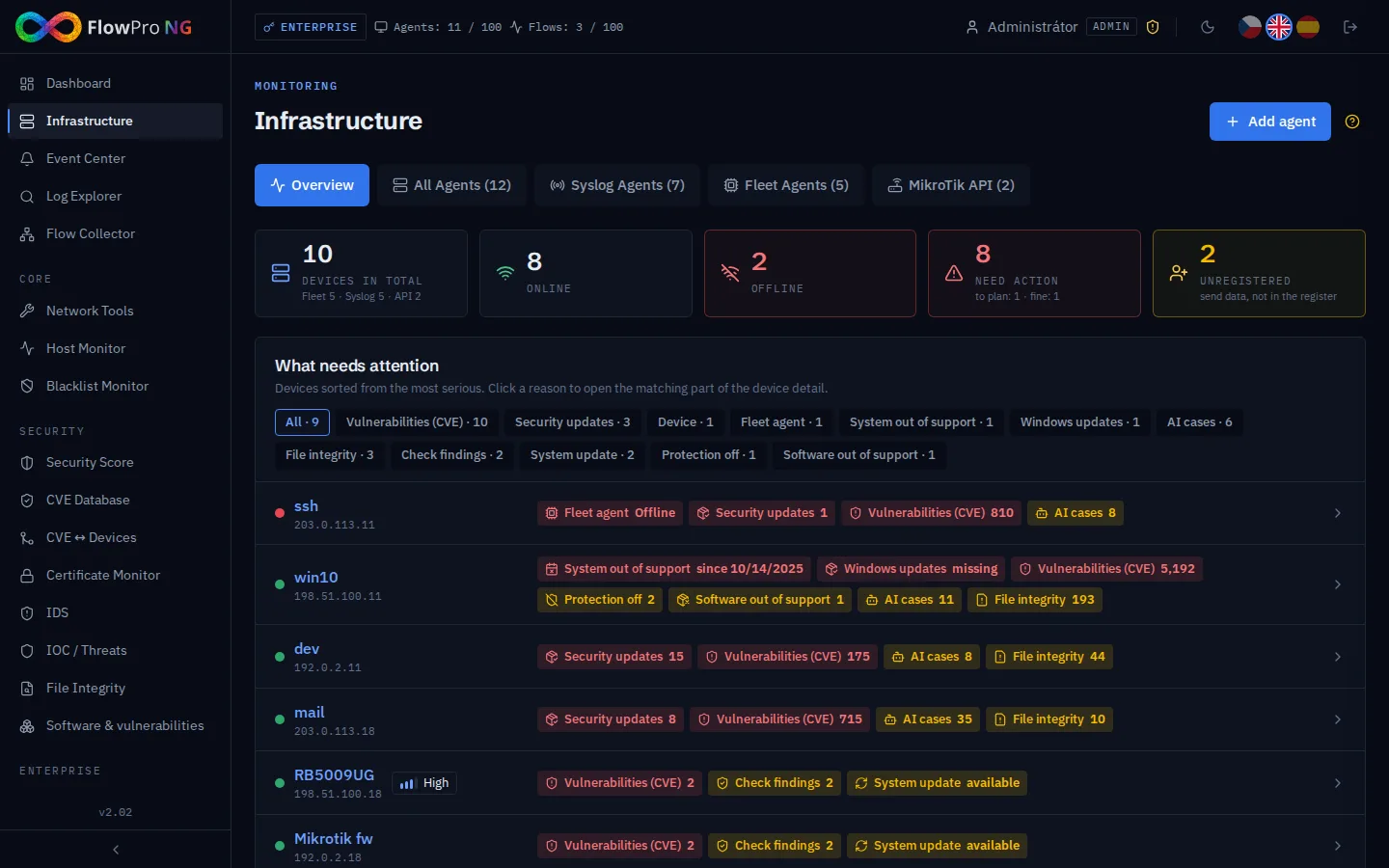
In Infrastructure choose Add agent, pick the agent type and the operating system, and run the copied command on the server you want to monitor. The agent downloads from FlowPro NG, installs and connects by itself; the window shows right away whether it is sending data.
The server with the agent must reach FlowPro NG on ports 443, 8220 and 9200. Details are in the guide Elastic Agent: collecting logs and metrics.
5. Syslog from network devices
Network devices send syslog to the address of FlowPro NG, port UDP 514. The Syslog agents window has ready-made commands for MikroTik, Ubiquiti and Linux. A device appears in the list by itself after its first message, and you will see its records in the Log Explorer. More in the guide Collecting syslog.
6. Network flows
Point the NetFlow or IPFIX flow export at port UDP 12051. You will then see the traffic in the Flow Collector. Setting up the export on individual devices is described in the guide Collecting NetFlow.
What next
- Secure your account with a passkey or two-factor authentication, see Securing access.
- Set up your notification channels.
- Help is available on every page under the question mark icon.
- Video
- Trial
- Syslog
- NetFlow