26
AI Analysis
AI Analysis — overview
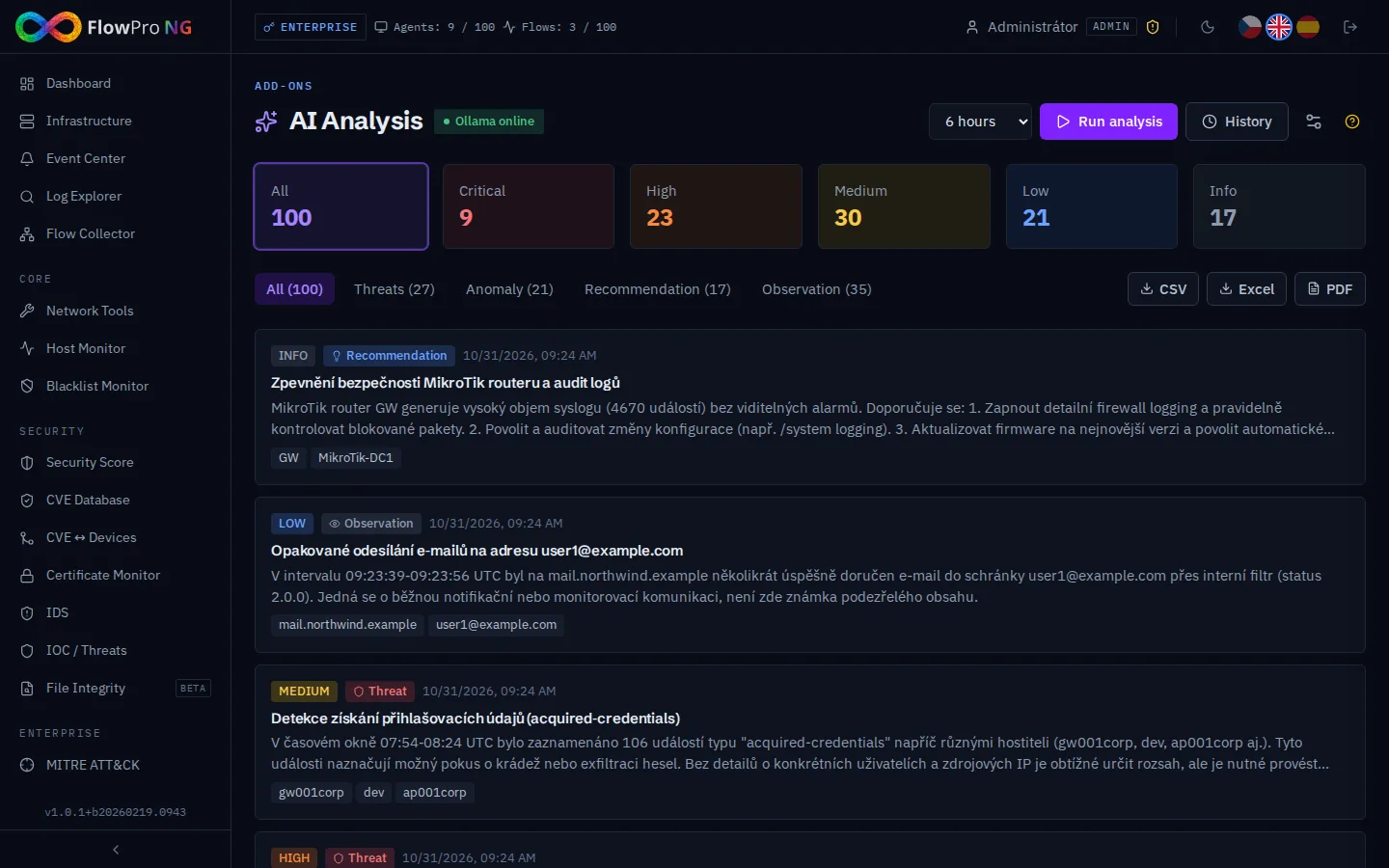
The AI Analysis module uses large language models (LLMs) for automatic analysis of security logs and events. The system identifies threats, suggests remediation measures, and generates readable reports.
How it works
AI Analysis works in the following steps:
- •Context collection — the system gathers relevant logs, alerts, and metadata
- •Sending to LLM — data is processed by a local Ollama model or cloud proxy
- •Analysis — the model identifies patterns, threats, and anomalies
- •Findings — results are saved as findings with severity and recommendations
Analysis types
| Type | Trigger | Description |
|---|---|---|
| Manual | "Analyze" button | User selects a period and starts the analysis |
| Automatic | Background service | Periodic analysis based on alerts (auto-trigger) |
| On-demand | From alert / Log Explorer | Analysis of a specific event or group of events |
Findings
Each analysis generates findings — specific results with the following attributes:
- •Name and description — what was found and why it is relevant
- •Severity (Critical / High / Medium / Low / Info) — finding severity
- •Recommendations — suggested remediation measures
- •Evidence — citations of relevant log records
- •MITRE ATT&CK — mapping to tactics and techniques (if relevant)
Finding detail
Clicking on a finding opens a detailed view with:
- •Complete evidence — all relevant log records
- •MITRE ATT&CK mapping — tactics, techniques, and sub-techniques
- •Recommendations — detailed remediation steps
- •Timeline — chronological course of the detected incident
Export findings
Findings can be exported in three formats:
- •CSV — tabular format for further processing
- •JSON — machine-readable format with all attributes
- •PDF — formatted report for management and security team
Modes and models
Local mode (Ollama)
For organizations that require on-premise data processing without sending data to external servers. Requires a local Ollama server with sufficient GPU.
- •Data stays within the local network
- •Requires a GPU server with sufficient VRAM
- •Configuration: Settings → AI → Mode: Local
Cloud mode (AI Proxy)
Data is sent via an encrypted channel to the AI Proxy server (api.net-service.io), which communicates with the Ollama backend. Authentication:
- •X-Instance-ID — instance identifier
- •X-License-Hash — SHA-256 hash of the license JWT token
- •TLS encryption — all communication over HTTPS
- •License validation — proxy verifies license validity and available modules
Available models
| Model | Description |
|---|---|
| qwen2.5:72b | Default model — balanced quality and speed ratio |
| gpt-oss:120b | Larger model — higher analysis quality, slower |
Token streaming
AI analyses use WebSocket streaming for progressive display of results:
- •Streaming NDJSON — tokens are displayed in real-time
- •Progressive output — user sees results immediately without waiting for completion
- •Interruption — analysis can be stopped at any time
Compliance Chat (NIS2 Chatbot)
Compliance Chat is a RAG-based chatbot specialized in the NIS2 directive. It allows asking questions about NIS2 requirements in natural language and receiving answers supported by specific articles and paragraphs of the directive.
- •RAG pipeline — query is converted to an embedding, relevant parts of the directive are searched from the database (pgvector), context is passed to the LLM
- •221 chunks — the NIS2 directive is divided into 221 semantic blocks in 18 categories
- •Embedding model — nomic-embed-text for vector search
- •Streaming responses — tokens are displayed in real-time via WebSocket
- •Conversation history — previous conversations are saved and can be revisited
- •Markdown formatting — responses support formatting (lists, highlighting, citations)
Usage statistics
In Settings → AI, detailed AI usage statistics are displayed:
- •Total analysis count — how many analyses were performed
- •Finding count — how many findings were generated
- •Analyses by severity — distribution of findings (chart)
- •Models and triggers — which model and analysis type generated the most findings
- •Daily timeline — AI usage trend over time (bar chart)
Configuration
AI module settings can be found in Settings → AI. Available options:
- •Mode — local (Ollama) or cloud (AI Proxy)
- •Model — LLM model selection
- •Auto-trigger — automatic analysis triggering on alert detection
- •Connection test — verify Ollama / AI Proxy availability
- •Usage statistics — detailed overview (see above)
Rate limits
| Tier | Per hour | Per day | Concurrent |
|---|---|---|---|
| Security | 30 | 200 | 2 |
| Enterprise | 60 | 500 | 4 |