11
Dashboard
Dashboard — overview
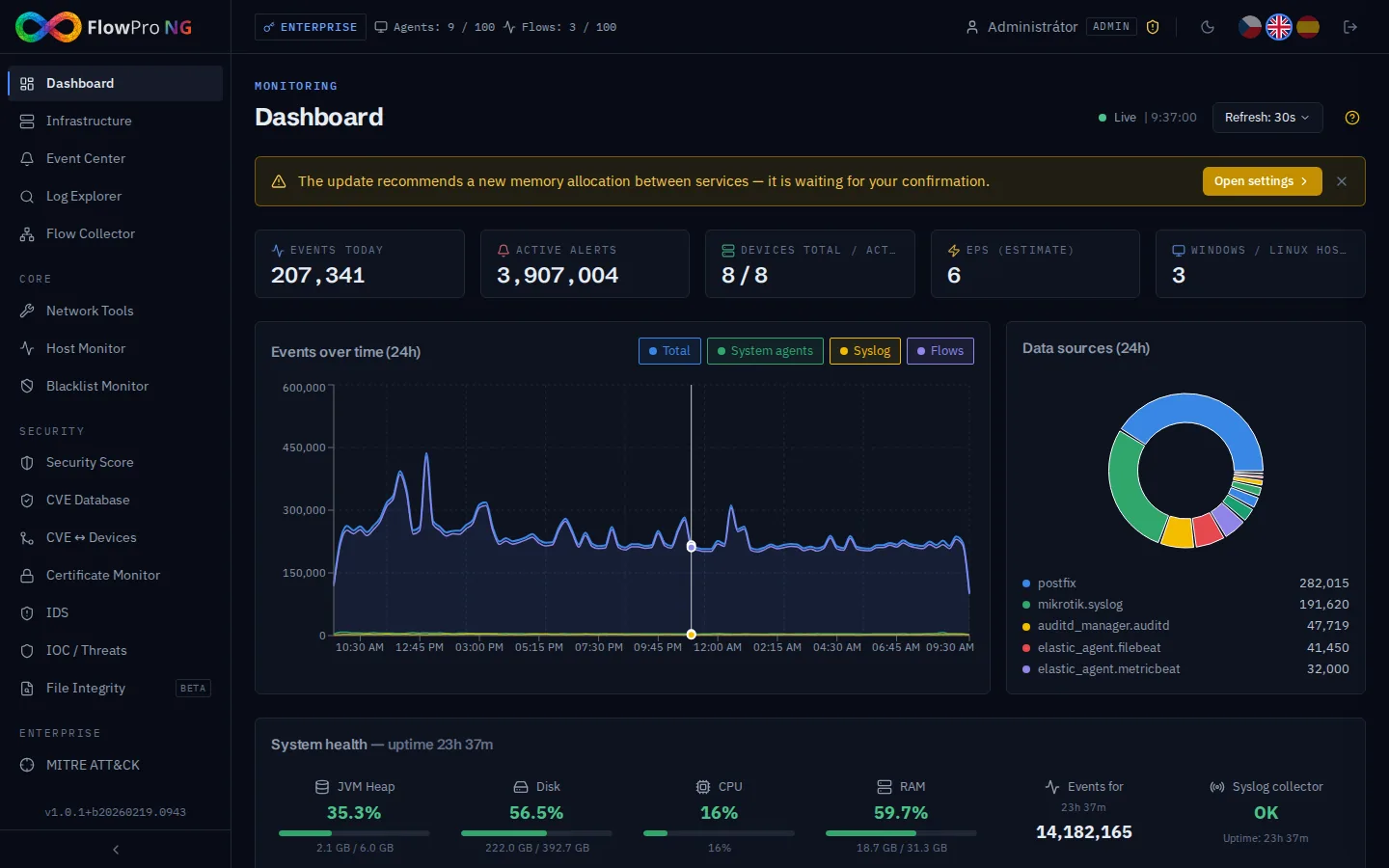
Dashboard is the main screen of FlowPro NG, providing a real-time overview of the state of your infrastructure. It displays key metrics, charts, and statistics in one place. Data is automatically updated every 10 seconds via a WebSocket connection.
Stat cards
At the top of the dashboard, key metrics are displayed as stat cards. Each card shows the current value and trend compared to the previous period.
- •Total events — number of log records for the selected period
- •Security alerts — number of detected security incidents
- •Active sources — number of devices actively sending logs
- •System health — overall component status (green/yellow/red)
Events timeline
The main chart displays the events timeline. Data is shown as a bar chart with color-coded categories:
- •Blue bars — standard system events
- •Orange bars — warning events
- •Red bars — critical events and alerts
The time range can be changed using the selector in the top right corner of the dashboard (1h, 6h, 24h, 7d, 30d).
Top sources and categories
Top sources
The table displays the most active log sources (servers, network devices, workstations) sorted by event count. Clicking on a source takes you to Log Explorer with a pre-filled filter.
Event categories
The pie chart displays the distribution of events by categories — system, network, security, authentication, and others. Hovering over a segment shows the exact count and percentage.
Threat Map
The choropleth map displays the geographic distribution of network traffic. Color intensity corresponds to the volume of traffic from/to a given country.
- •Inbound traffic — shows countries from which requests reach your infrastructure
- •Outbound traffic — shows the destinations of outgoing communication from your network
- •Click on a country — shows details with IP addresses and connection counts
- •Color scale — the darker the color, the more traffic
Uptime Monitors panel
The panel displays an overview of monitored service statuses grouped by probe type:
- •HTTP — web servers and applications
- •Ping (ICMP) — host availability
- •SSL — certificate validity
- •Port (TCP) — availability of specific ports
- •DNS — DNS record functionality
Green icon = UP, red = DOWN, yellow = DEGRADED. Clicking on a monitor takes you to the Host Monitor with details.
Flow Anomalies panel
The panel displays recently detected anomalies in network traffic from the Flow Collector module. The map visualizes the geographic location of anomalous sources and destinations.
- •Volume anomalies — unusually high data transfer
- •New connections — communication with previously unseen destinations
- •Port scans — port scanning detection
- •Data exfiltration — suspicious volume of outgoing data
System health
The system health section displays the status of individual FlowPro NG components:
- •Elasticsearch — cluster status (green/yellow/red), index count, data size
- •PostgreSQL — connection status, table count
- •Disk — disk space usage (green/yellow/red progress bar)
- •CPU/RAM — current server utilization
- •Services — systemd service status (flowpro-api, elasticsearch, kibana, etc.)
Service Health Monitor
FlowPro NG automatically monitors the status of key system services every 60 seconds. When a service outage is detected, a red modal window with a HeartPulse icon is displayed.
Monitored services
| Service | Type | Description |
|---|---|---|
| Elasticsearch | Core | Search engine for logs and alerts |
| PostgreSQL | Core | Relational database for configuration and metadata |
| Nginx | Core | Web server and reverse proxy |
| Kafka | Optional | Message broker for NetFlow pipeline |
| Logstash | Optional | Syslog pipeline (MikroTik) |
| Kibana | Optional | Elasticsearch dashboard |
| nfacctd | Optional | NetFlow collector |
Outage banner
When an outage is detected, a modal window is displayed with information about the affected service:
- •Service name and current status (DOWN)
- •Service restart command (systemctl restart ...)
- •Path to the log file for diagnostics
- •Common outage causes and solutions
The banner is dismissible, but reappears when a new outage is detected. When a service recovers, a system event (recovery) is automatically generated.
Real-time updates
The dashboard automatically updates every 10 seconds via a WebSocket connection. In the top right corner, there is a connection status indicator:
- •Green dot — WebSocket is active, data is updated in real-time
- •Red dot — connection interrupted, data is not being updated (automatic reconnect attempt)