14
Log Explorer
Log Explorer — overview
Log Explorer is the main tool for searching, filtering, and analyzing log records. It supports full-text search via Elasticsearch with advanced filters and real-time streaming of new events.
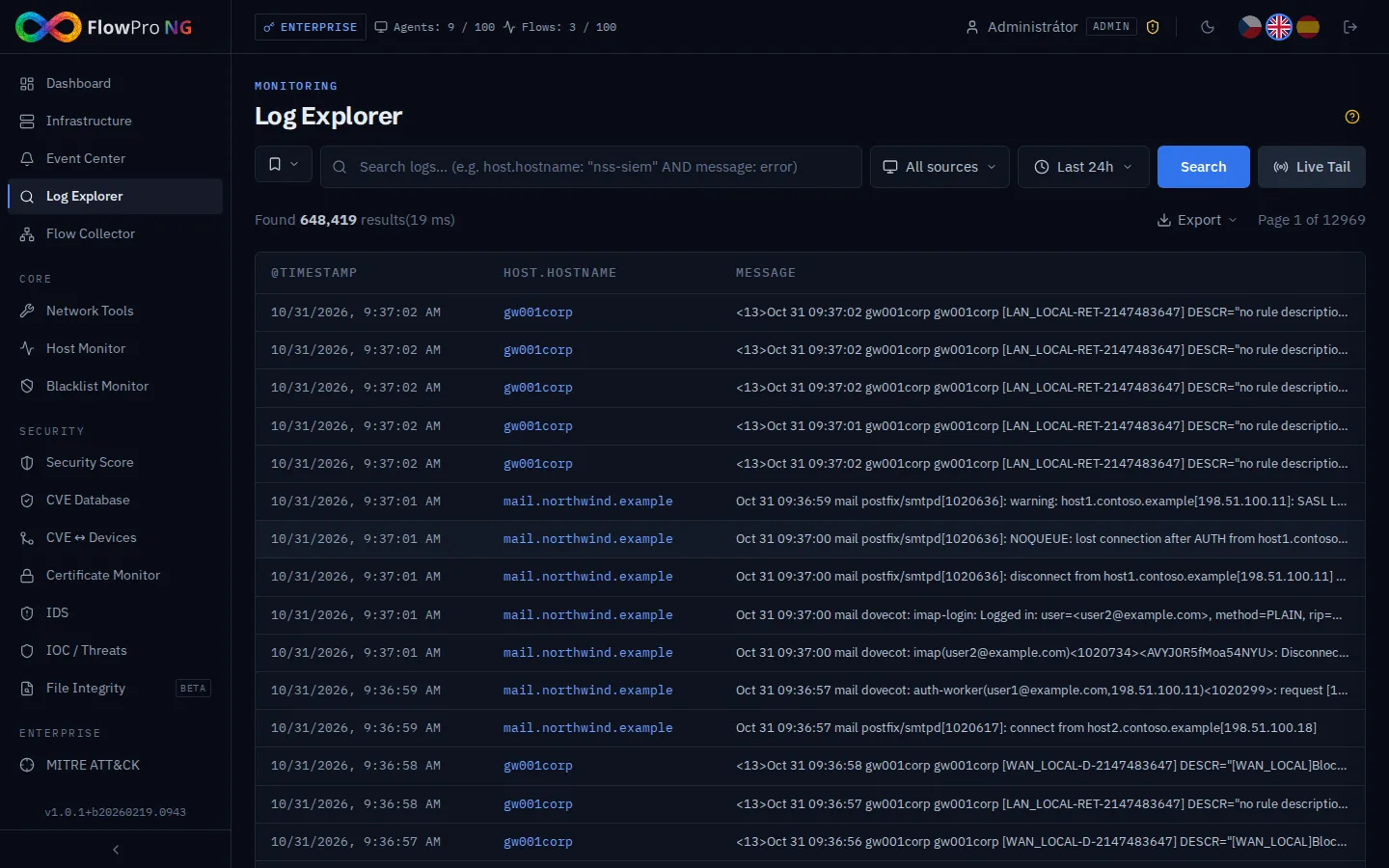
Searching
The search field supports two modes:
Simple search
Enter any text and press Enter. The system searches the message, hostname, and other text fields.
KQL (Kibana Query Language)
For advanced queries, use KQL syntax. Examples:
- •host.hostname: "web-server-01" — filter by hostname
- •event.category: "authentication" AND event.outcome: "failure" — failed logins
- •source.ip: 192.168.1.0/24 — events from a subnet
- •NOT event.category: "process" — exclude categories
Filters
Events can be filtered using several criteria:
Time range
Select a period using the date picker at the top. Predefined ranges: Last 15 min, 1h, 6h, 24h, 7 days, 30 days, or custom range.
Sources
Filter by log source hostname. The dropdown displays all active sources with event counts. Blocked sources (when agent limit is exceeded) are not shown in the list.
Severity / Category
Filter by severity (info, warning, error, critical) or event category (authentication, network, process, file, etc.).
Events table
The main table displays found events. Each row contains:
- •Timestamp — event time (in browser local time)
- •Source — source device hostname
- •Message — main event message
- •Category — category (system, network, security, ...)
- •Severity — color-coded severity
Clicking on a row expands the event detail with all fields in JSON format. From the detail, you can copy individual values or the entire JSON.
Field statistics (Field Stats)
The panel on the right side displays statistics of the most frequent values for key fields:
- •Top hostnames — most active sources
- •Top IP addresses — most frequent source and destination IPs
- •Top categories — distribution of event types
- •Top severity — counts by severity
Clicking on a value in the statistics automatically adds a filter to the search.
Live Tail
The Live Tail feature streams new events in real-time via WebSocket. Activate it by clicking the "Live" button in the top right corner.
- •New events are added to the top of the table
- •Automatic scrolling keeps the newest events visible
- •Color highlighting by severity
- •Live Tail automatically stops when scrolling back in history
Data export
Found events can be exported in several formats:
- •CSV — tabular format, suitable for Excel and analysis
- •JSON — machine-readable format with all fields
Saved searches
Frequently used queries can be saved for quick access. A saved search contains the search query, filters, and time range.
Save
Set the query and filters, click the floppy disk icon "Save search", enter a name.
Load
Click the folder icon "Saved searches", select from the list.
Management
Saved searches can be renamed, updated, or deleted from the overview panel.