22
CVE ↔ Assets
CVE ↔ Assets
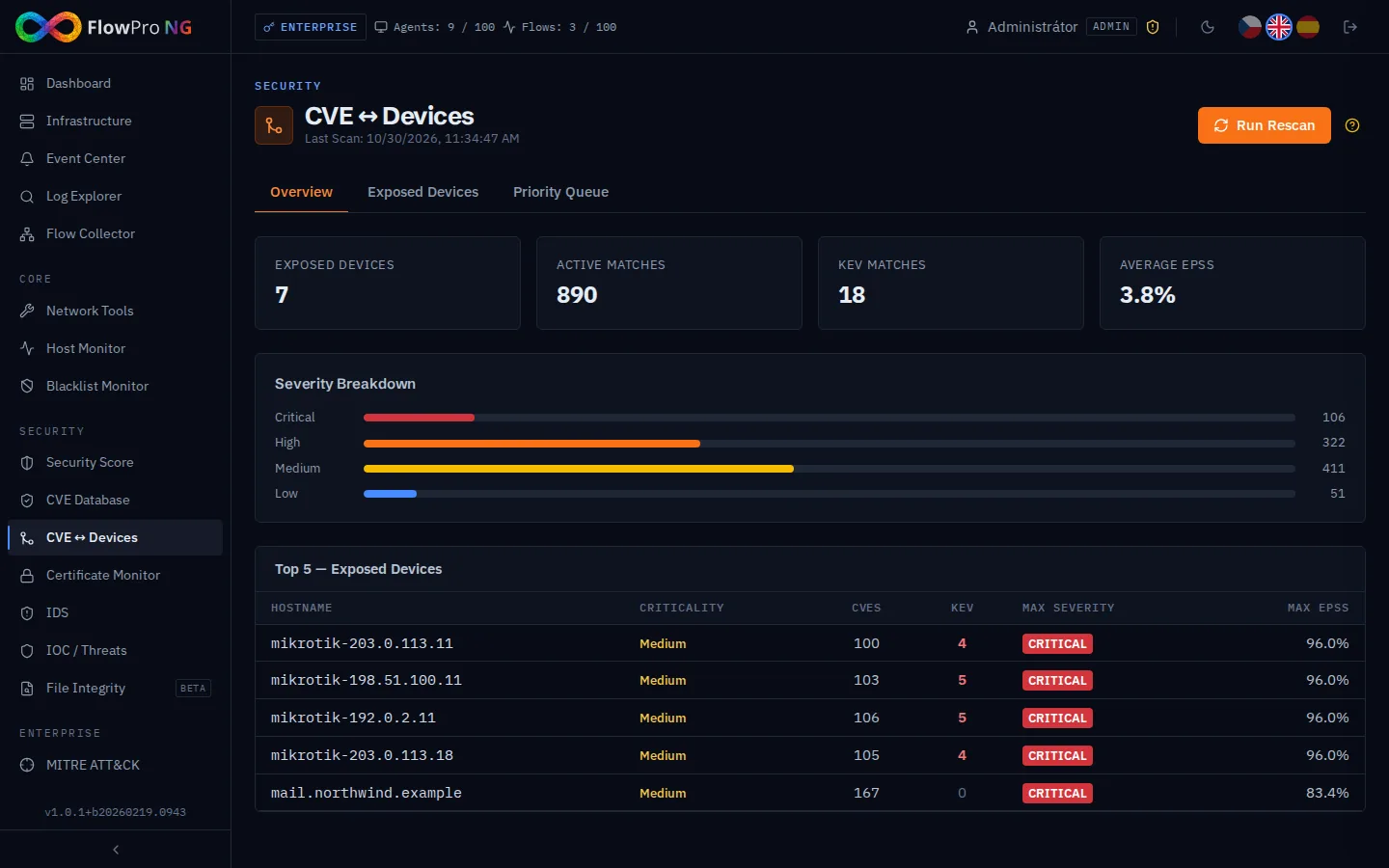
The CVE ↔ Assets module links CVE vulnerabilities from the CVE database with specific devices in your infrastructure. For each asset, it displays which vulnerabilities affect it, their severity, CVSS score, and remediation status. This allows prioritizing patching efforts based on real exposure.
Workflow
The module aggregates data from two sources: the CVE database (see CVE Monitor) and detected assets (Assets). The system automatically matches CVEs to assets based on software, OS versions, and installed packages detected by Elastic Agent.
Select a device
The main table lists all assets for which at least one CVE match was found. Clicking on a row expands the list of CVEs affecting that device.
Filter by severity
Use the severity filter in the expanded device row to display only CVEs of the selected severity: All / CRITICAL / HIGH / MEDIUM / LOW. The number of CVEs for each level is shown next to the filter.
Set status
For each CVE in the list, you can set a remediation status using the status dropdown. Available states:
- •Open — unresolved, requires attention (default)
- •In Progress — remediation is underway
- •Resolved — patched or mitigated
- •Accepted Risk — vulnerability acknowledged, risk accepted
Displayed data
- •CVE ID — unique vulnerability identifier (e.g. CVE-2024-1234), links to detail
- •CVSS — severity score 0–10 (color coded: red ≥9, orange ≥7, yellow ≥4, green <4)
- •EPSS — probability of exploitation in the next 30 days (0–100%)
- •KEV — flag indicating the vulnerability is on the CISA Known Exploited Vulnerabilities list
- •Published — CVE publication date
- •Status — current remediation status
Export
The CVE ↔ Assets table can be exported to CSV using the Export button in the top right corner of the page. The export includes all CVE-device pairs with all columns including status.