12
Assets
Assets — overview
The Assets module provides a central registry of all monitored devices in the infrastructure. It allows organizing devices into groups, tracking their status, and quickly accessing relevant logs.
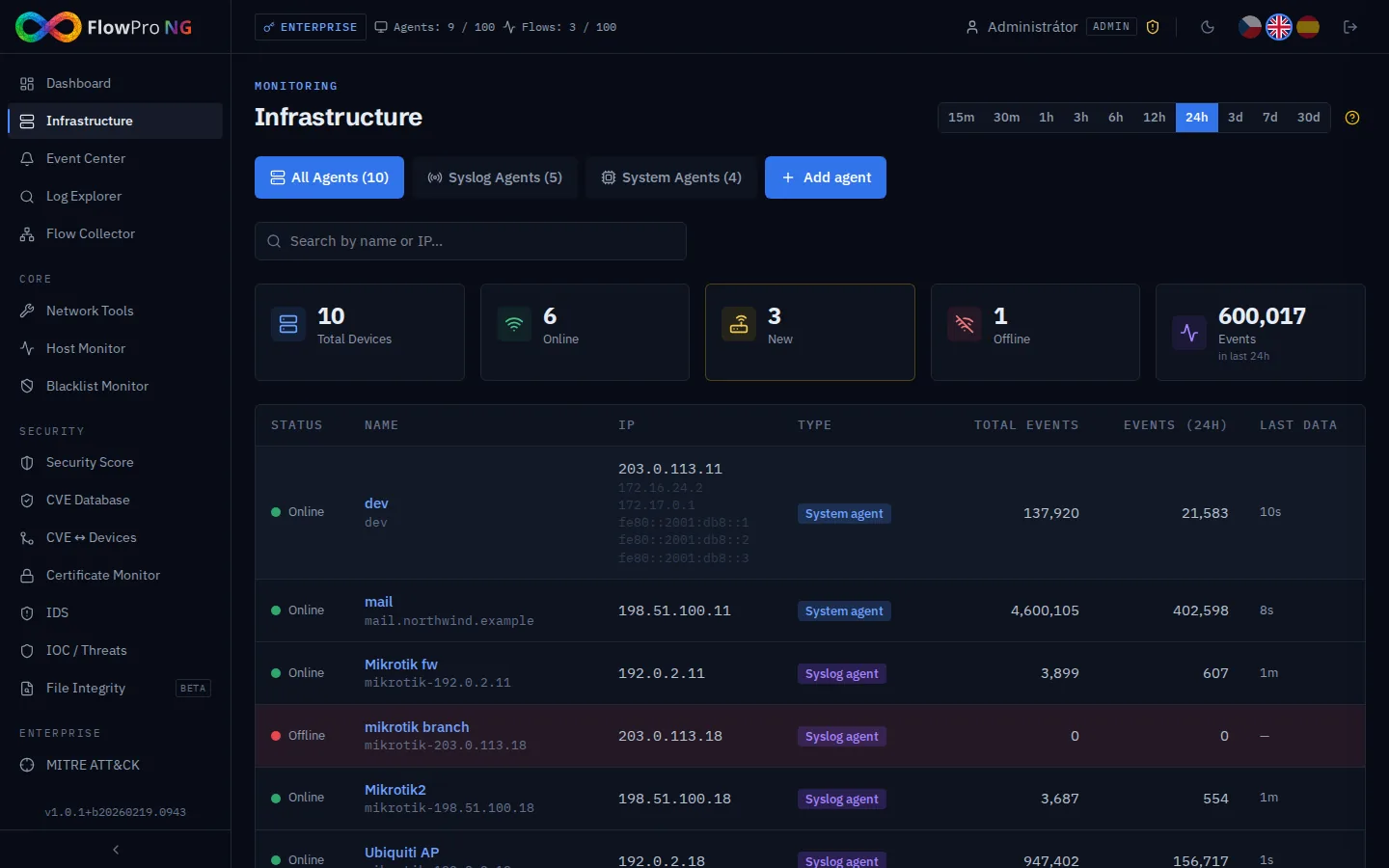
Asset management
Adding devices
Devices are added to the system in two ways:
- •Automatically — the system automatically detects new log sources (discovered assets)
- •Manually — adding via a form with IP address, hostname, and other details
Device details
Clicking on a device opens a detail page containing:
- •Basic information — hostname, IP address, OS, device type
- •Additional IPs — additional IP addresses assigned to the device
- •Health — agent status, last communication, source type
- •Events — last N events from the device (with aggregated statistics)
- •Charts — event timeline from the given device
Device sources
Devices can receive data from various source types:
| Source | Description | Identification |
|---|---|---|
| Fleet (Elastic Agent) | Locally installed agent | hostname from Fleet API |
| Syslog (MikroTik) | Syslog messages via UDP 514 | Sender IP address (sender_ip) |
| NetFlow | Network flows via UDP 12051 | Source IP address (peer_ip_src) |
Tab: Discovered devices
FlowPro NG automatically detects new devices that start sending logs. Newly discovered devices appear in the "Discovered" tab and you can:
- •Adopt — add to the inventory, name, and assign to a group
- •Ignore — hide from the discovered list
- •Explore in detail — view logs before adding
Device groups
Devices can be organized into groups for better clarity. Groups allow:
- •Logical grouping — servers, network devices, workstations, IoT
- •Bulk operations — filtering logs by group
- •Health overview — see the status of the entire group at a glance
Agent usage and limits
At the top of the page, a banner with the active agent count is displayed:
- •Agents: X / Y — number of active agents versus license limit
- •Green status — agent count is below the limit
- •Red status — agent count has exceeded the limit, some sources are blocked
Agent blocking
If the number of active agents exceeds the license limit, the system automatically blocks excess sources. Blocked devices are visually distinguished:
- •ShieldAlert icon (shield with exclamation mark) instead of status dot
- •Reduced opacity (gray appearance)
- •Data from blocked sources is not displayed in Log Explorer and other modules
Device statuses
| Status | Color | Meaning |
|---|---|---|
| Online | Green | Device is actively sending logs (last event < 5 min) |
| Degraded | Yellow | Device sends logs with interruptions (> 5 min, < 1h) |
| Offline | Red | Device is not sending logs (> 1 hour) |
| Unknown | Gray | Status cannot be determined (new device without data) |
| Blocked | Red + shield | Source is blocked due to agent limit exceeded |