DocumentationModules
27
MITRE ATT&CK
MITRE ATT&CK
The MITRE ATT&CK module maps detected events from Suricata IDS, Honeypot, and Threat Intelligence to the MITRE ATT&CK framework — a knowledge base of adversary tactics and techniques used in real-world cyberattacks.
Required tier:Enterprise
Suricata IDS must be active and generating alerts for the ATT&CK heatmap to show detections. Without IDS data, all technique cells will appear grey.
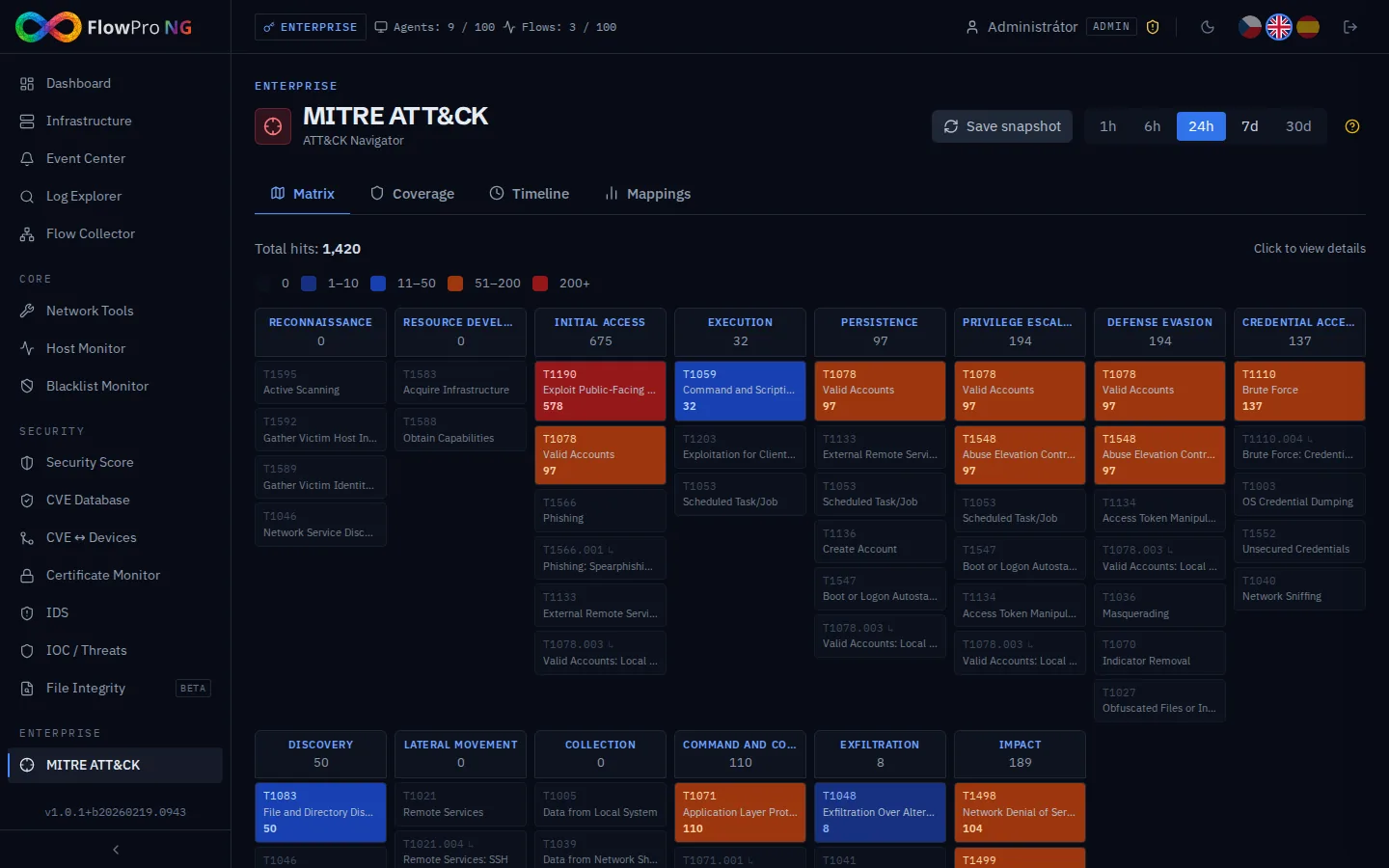
Tabs overview
| Tab | Description |
|---|---|
| Matrix | ATT&CK heatmap — colour-coded technique grid across all 14 tactics. Grey = 0 hits, blue/orange/red = hit count. |
| Coverage | Shows what percentage of techniques are covered by active data sources. Expandable per-tactic breakdown. |
| Timeline | Activity chart of detected techniques over the last N days. Requires at least one saved snapshot. |
| Mappings | Manage built-in and custom source → technique mappings. Add your own rules to map Suricata categories or SIDs to ATT&CK techniques. |
Matrix tab
The matrix displays all 14 MITRE ATT&CK tactics as columns and their techniques as cells. Hit count color scale:
| Color | Hit count | Meaning |
|---|---|---|
| Grey | 0 | No detections — technique mapped but not triggered |
| Blue | 1–10 | Low activity |
| Blue (bright) | 11–50 | Moderate activity |
| Orange | 51–200 | High activity |
| Red | 200+ | Critical / mass attack |
Click any technique cell to open the detail panel — shows hit count, source breakdown (Suricata / Honeypot / Threat Intel), recent events, source IP map, and a link to the official ATT&CK page.
Mappings tab
Mappings define which source events are linked to which ATT&CK technique. Built-in mappings cover common Suricata categories and Honeypot types. You can add custom mappings for specific Suricata SIDs or categories.
Adding a custom mapping
- •Source type — Suricata category, Suricata SID, Honeypot category, Honeypot type, or IOC classification
- •Source value — the exact category name or SID number
- •Technique ID — ATT&CK technique ID, e.g. T1190 or T1021.004
- •Confidence — percentage (0–100) indicating mapping reliability
Snapshot & Timeline
The "Save snapshot" button saves the current detection counts for all techniques. Snapshots are used to build the Timeline chart — without snapshots, the Timeline tab will show no data.
It is recommended to save a snapshot at least once a day — ideally set up a cron job on the server.