15
Flow Collector
Flow Collector — overview
The Flow Collector module provides collection and analysis of network flows (NetFlow/IPFIX). It enables monitoring of traffic volume, identification of top-talkers, anomaly detection, and bandwidth monitoring on network interfaces.
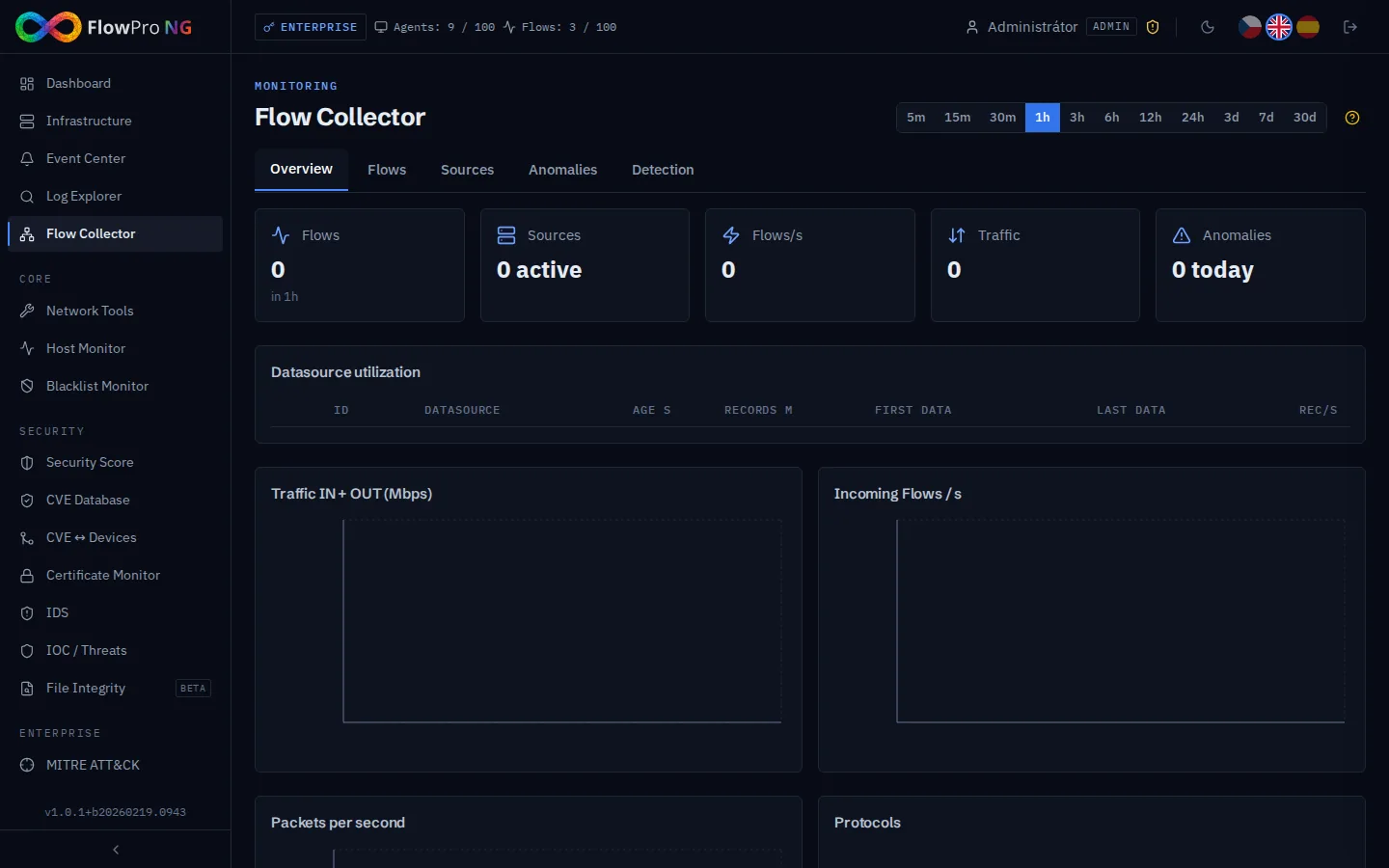
Module tabs
Flow Collector contains 5 tabs:
- •Overview — summary statistics, traffic charts, top-talkers and map
- •Flows — browser for individual network flows with search
- •Sources — data source management (NetFlow exporters)
- •Anomalies — detected anomalies in network traffic
- •Detection — configuration of detection thresholds and rules
Tab: Overview
The top cards display key metrics for the selected period:
- •Total data volume — how much data flowed through the network (GB/TB)
- •Flow count — total number of network flows
- •Unique source IPs — number of different communicating devices
- •Detected anomalies — number of anomalous flows
Top-Talkers
Tables display devices with the highest traffic volume:
- •Top source IPs — devices generating the most outgoing traffic
- •Top destination IPs — destination addresses with the highest incoming traffic volume
- •Top conversations — source-destination IP pairs with the highest communication volume
Traffic map
A popup map (780x660 px) visualizes the geographic location of network traffic sources and destinations. GeoIP enrichment provides information about country, city, ASN, and provider.
Tab: Flows
The network flows table allows browsing and searching individual records. Each flow contains:
- •Source and destination IP address + port
- •Protocol (TCP, UDP, ICMP)
- •Data volume (bytes) and packet count
- •Flow duration
- •Timestamps (start/end)
- •AS number and provider name (via GeoIP)
Flow export
Flows can be exported in CSV and JSON formats. Export respects current filters and search.
Tab: Sources
Management of NetFlow/IPFIX data sources. Displays all active exporters with status and data volume information.
- •Source IP address — where NetFlow data comes from
- •Name — source name (from configured labels)
- •Status — active / inactive / blocked
- •Data volume — how much data the source sent in the last period
Blocked sources
If the number of active agents exceeds the license limit, some NetFlow sources may be automatically blocked. Blocked sources are visually distinguished:
- •ShieldAlert icon — shield with exclamation mark
- •Red background — visual distinction from active sources
- •Reduced opacity — gray appearance
Agent usage banner
At the top of the Sources tab, a banner with the current agent count is displayed:
- •Agents: X / Y — green under normal conditions
- •Red banner — when the limit is exceeded with the number of blocked sources
Tab: Anomalies
Flow Collector automatically detects anomalies in network traffic based on statistical methods:
| Anomaly type | Description |
|---|---|
| Volume spike | Sudden increase in traffic volume outside normal range |
| New connection | Communication between devices that have not communicated before |
| Port scan | Sequential port scanning from a single IP address |
| Data exfiltration | Unusually large volume of outgoing data |
Tab: Detection
Configuration of detection thresholds for anomalies:
- •Volume spike thresholds — multiple of average volume
- •Port scan sensitivity — minimum number of ports for detection
- •Exfiltration threshold — maximum outgoing data volume per time unit
- •Whitelist — IP addresses excluded from anomaly detection
Configuration in Settings
Flow Collector settings can be found in Settings → Flow Collector:
- •nfacctd port — UDP port for receiving NetFlow data (default 12051)
- •Start/Stop service — nfacctd service control
- •UFW rules — automatic firewall rule management for NetFlow port