33
Playbooks (SOAR)
Playbooks (SOAR)
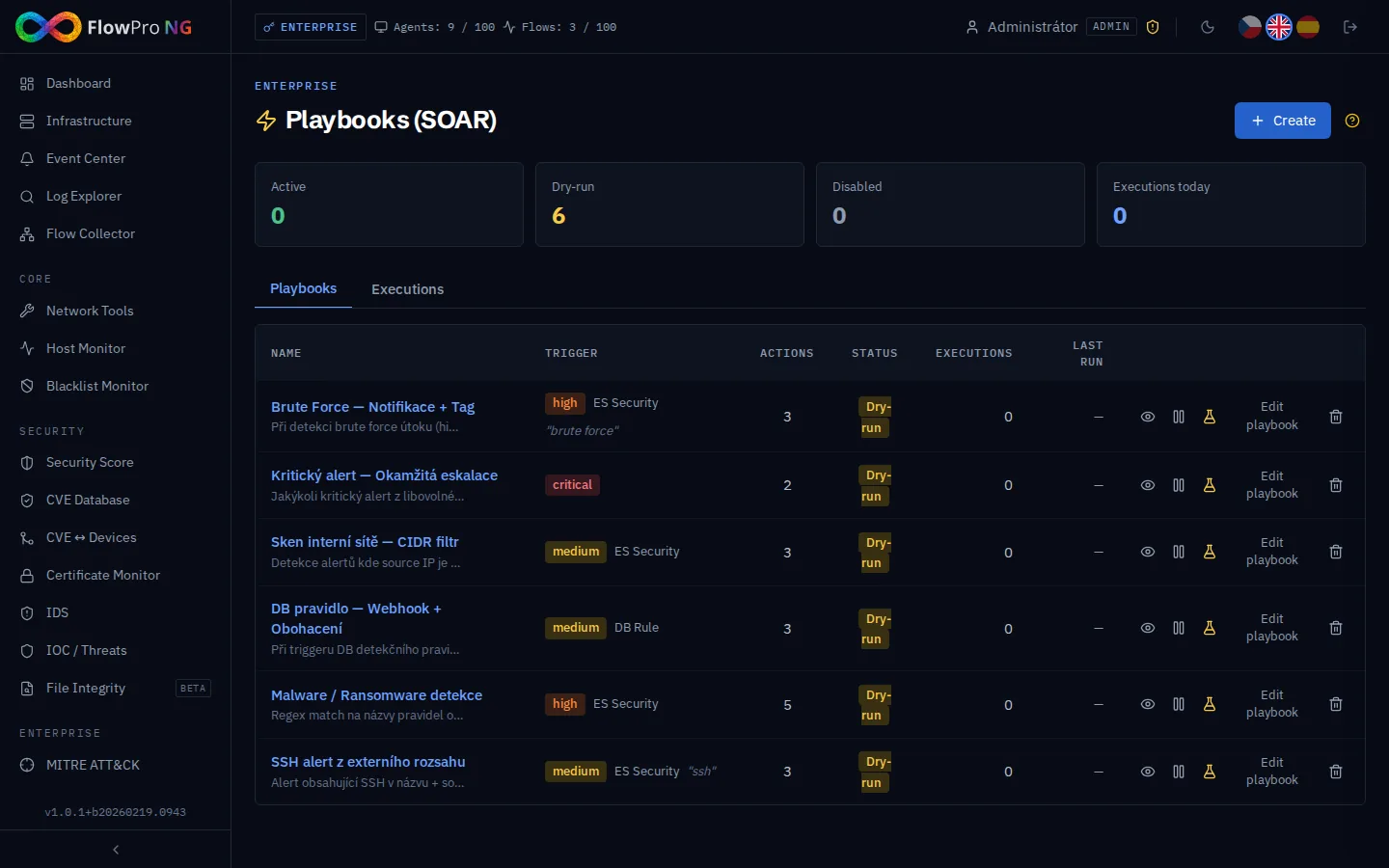
Playbooks provide automated response capabilities — when a security alert matches defined trigger conditions, the system automatically executes a sequence of actions such as sending webhooks, tagging assets, enriching IOC data, or logging events. This is a lightweight SOAR (Security Orchestration, Automation and Response) module integrated directly into the alert engine.
How it works
Playbooks are evaluated automatically every 60 seconds as part of the alert engine cycle:
- •Alert engine detects new alerts (from Suricata IDS, DB rules, honeypot, threat intel)
- •Each alert is matched against all enabled playbook triggers
- •If trigger conditions match, the playbook actions are executed sequentially
- •Cooldown and rate limiting prevent excessive execution
- •All executions are logged with per-action results
Stats panel
At the top of the page, four stat cards show the current state of your playbooks. Click any card to filter the table:
| Card | Description |
|---|---|
| Active | Playbooks that are enabled and actively executing actions on matching alerts |
| Dry-run | Playbooks in testing mode — triggers are evaluated and logged but actions are not executed |
| Disabled | Playbooks that are turned off and will not be evaluated |
| Executions today | Total number of playbook executions in the last 24 hours (click to switch to Executions tab) |
Creating a playbook
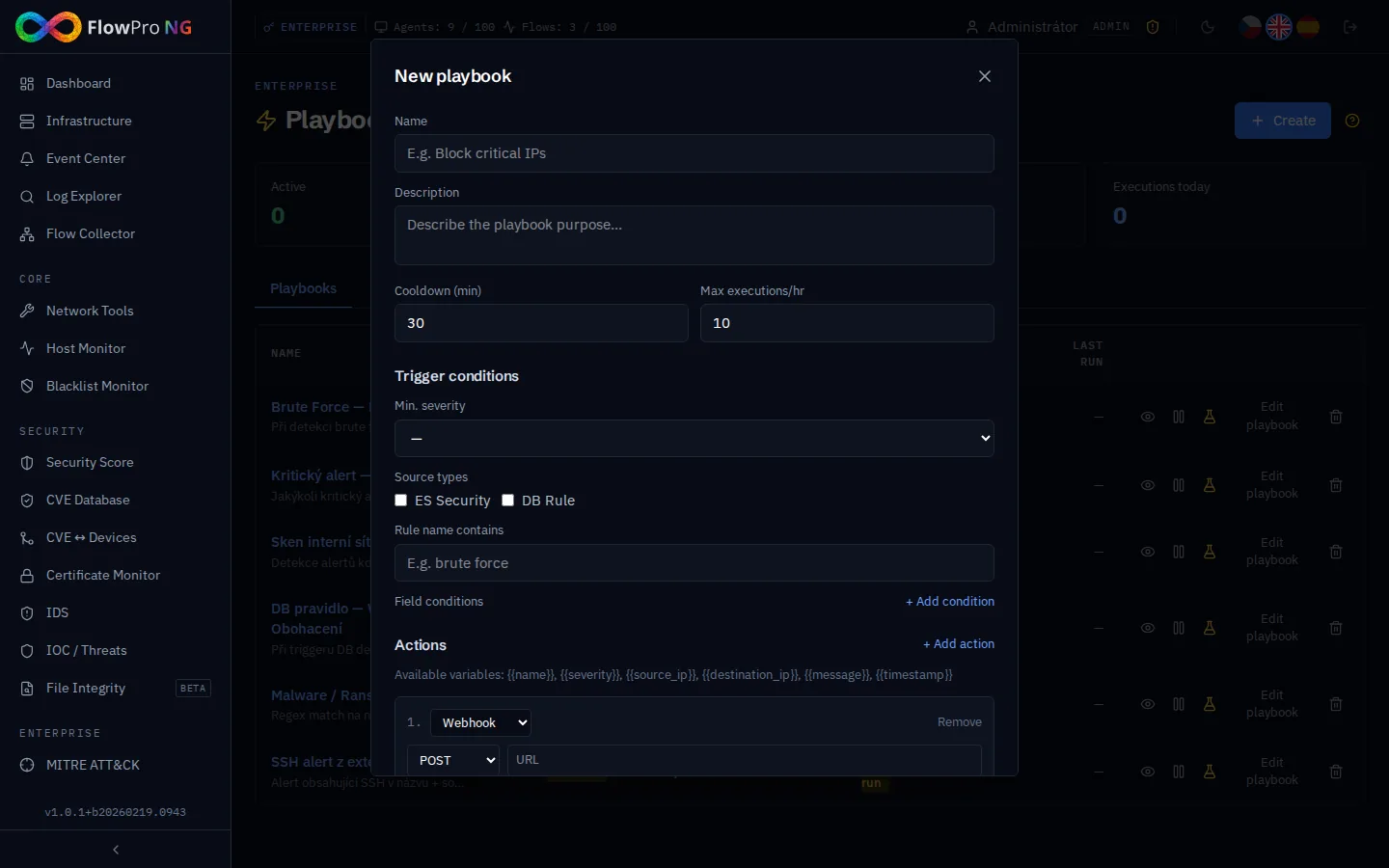
Click the "+ Create" button in the top right corner to open the playbook form:
1. Basic settings
- •Name — unique identifier for the playbook (e.g. "Brute Force — Notify + Tag")
- •Description — optional note explaining the purpose
- •Cooldown (min) — minimum minutes between executions of this playbook (default 30)
- •Max executions/hr — maximum number of times this playbook can fire per hour (default 10)
2. Trigger conditions
Trigger conditions define which alerts will activate the playbook:
| Condition | Description |
|---|---|
| Min. severity | Minimum alert severity to match (low / medium / high / critical) |
| Source types | Filter by alert source: ES Security (Suricata) and/or DB Rule |
| Rule name contains | Match alerts where the rule name contains this text (case-insensitive) |
| Field conditions | Advanced: match specific alert fields using operators (equals, contains, regex, CIDR) |
Field conditions (advanced)
Field conditions allow matching on specific alert data fields. Available operators:
| Operator | Example | Description |
|---|---|---|
| equals | source_ip = 10.0.0.1 | Exact match |
| contains | name ~ "brute" | Substring match (case-insensitive) |
| regex | name ~ "(?i)(malware|trojan)" | Regular expression match |
| cidr | source_ip in 192.168.0.0/16 | IP address in CIDR range |
Action types
Each playbook can contain one or more actions that are executed sequentially when the trigger matches. Actions support template variables for dynamic content.
Webhook
Sends an HTTP request to an external URL. Configure method (POST/PUT/GET), URL, custom headers, and JSON body. Use this to integrate with Slack, Teams, PagerDuty, ServiceNow, or any REST API.
Notify (channel)
Dispatches a notification via an existing notification channel (email, Slack, Teams, etc.) configured in Settings → Notifications.
Tag asset
Automatically tags an asset (device) based on the alert IP address. Specify the tag name and which IP field to use (source_ip or destination_ip). Tagged assets are visible in the Assets page.
Enrich IOC
Queries the Threat Intelligence service to check an IP address against threat feeds (AbuseIPDB, GreyNoise, etc.). Results are attached to the execution log.
Log event
Creates a system event in the Event Center. Configure title, message, and severity level. Useful for audit trails and correlation with other alerts.
Template variables
All string fields in action configurations support template variables using the {{variable}} syntax. These are replaced with actual alert data at execution time:
| Variable | Description |
|---|---|
| {{name}} | Alert/rule name |
| {{severity}} | Alert severity (low/medium/high/critical) |
| {{source_ip}} | Source IP address |
| {{destination_ip}} | Destination IP address |
| {{source_port}} | Source port |
| {{destination_port}} | Destination port |
| {{host_name}} | Hostname |
| {{user_name}} | Username |
| {{protocol}} | Network protocol |
| {{message}} | Alert message text |
| {{timestamp}} | Alert timestamp |
Cooldown & rate limiting
Each playbook has two protection mechanisms to prevent alert storms from causing excessive automation:
| Mechanism | Default | Description |
|---|---|---|
| Cooldown | 30 minutes | After a playbook fires, it will not fire again for the cooldown period — even if new matching alerts arrive |
| Rate limit | 10 per hour | Maximum number of executions per hour. Once reached, the playbook is paused until the next hour window |
Dry-run mode
When dry-run is enabled, the playbook evaluates trigger conditions and records the match, but does NOT execute any actions. This is the recommended way to test new playbooks:
- •Create a new playbook with dry-run enabled (default for seed playbooks)
- •Monitor the Executions tab to see which alerts would have triggered it
- •Adjust trigger conditions if needed
- •Toggle dry-run off to activate the playbook
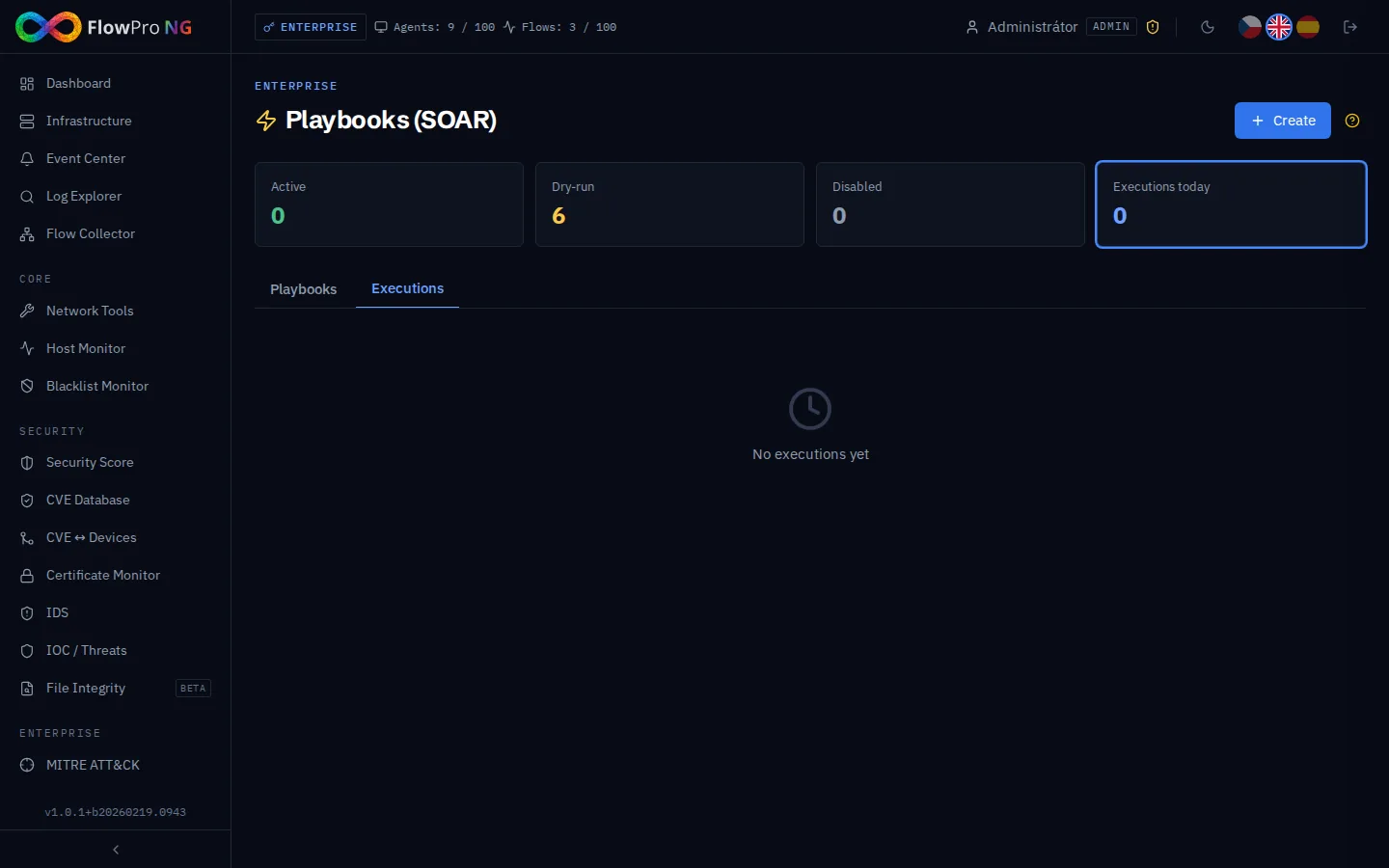
Execution log
The Executions tab shows a chronological log of all playbook executions. Each entry includes:
- •Playbook name and execution status (completed / failed / dry-run)
- •Alert name and severity that triggered it
- •Execution duration in milliseconds
- •Timestamp of execution
- •Expandable details with per-action results (success/failure, response data)
Example playbooks
FlowPro includes 6 pre-installed example playbooks covering common security automation scenarios. All start in dry-run mode:
| Playbook | Trigger | Actions |
|---|---|---|
| Brute Force — Notify + Tag | High+ severity, ES Security, rule contains "brute force" | Webhook (Slack) + Tag asset + Log event |
| Critical Alert — Immediate Escalation | Critical severity, any source | Webhook (SOC API) + Log event |
| Internal Network Scan — CIDR Filter | Medium+, source_ip in 192.168.0.0/16 | Tag asset + Enrich IOC + Log event |
| DB Rule — Webhook + Enrichment | Medium+, DB Rule source | Enrich IOC + Webhook + Log event |
| Malware / Ransomware Detection | High+, regex: malware|trojan|ransomware|c2 | Tag both IPs + Enrich IOC + Webhook + Log event |
| SSH Alert from External Range | Medium+, ES Security, rule contains "ssh" | Enrich IOC + Tag asset + Log event |
Best practices
- •Always start with dry-run mode — test trigger matching before enabling actions
- •Use specific triggers — combine severity + source type + rule name for precise matching
- •Set appropriate cooldowns — 5 min for critical alerts, 30+ min for informational playbooks
- •Monitor execution logs regularly — check for failed actions and unexpected trigger patterns
- •Use CIDR field conditions for internal/external IP classification
- •Combine multiple action types — webhook for SOC notification + tag for asset tracking + log for audit trail