18
Host Monitor
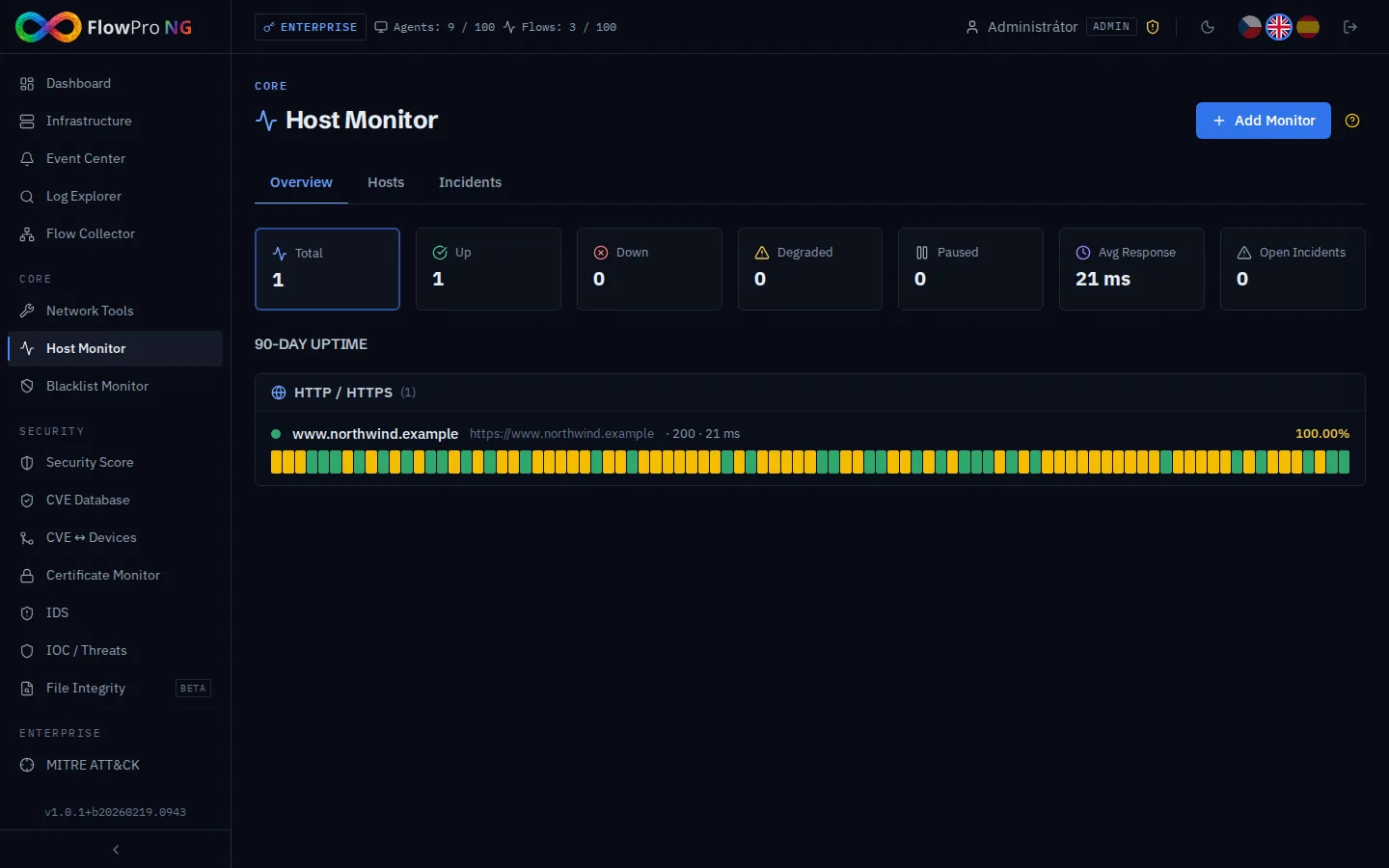
Host Monitor — overview
Host Monitor (Uptime Monitor) tracks the availability of your services and servers using 5 probe types. On outage or degradation, it automatically generates system events and sends notifications.
Probe Types
Each probe returns 5 values (5-tuple): status, response time, status code, error, and extra metrics.
| Type | Description | Metrics |
|---|---|---|
| HTTP(S) | Web server check (GET request) | Status code, response time, SSL validity |
| TCP (Port) | TCP port check (connect) | Response time, port availability |
| ICMP (Ping) | ICMP echo request | RTT, packet loss |
| DNS | DNS query for a specific record | Resolution time, response correctness |
| SMTP | Mail server check | Response time, STARTTLS, banner |
Monitor Configuration
For each monitor you can configure:
- •Target — URL, hostname, or IP address
- •Interval — how often to check (30s, 1min, 5min, 15min, ...)
- •Timeout — maximum response wait time
- •Expected result — HTTP status code, response content, DNS record
- •Notification rules — who should be notified and when
Notification Rules
Individual notification rules can be assigned to each monitor. Notification channels are configured in Settings → Notifications. For each channel, you set when the alert should be sent:
| Event | Description | Example |
|---|---|---|
| On Down | Service stopped responding | Web server returns HTTP 503 |
| On Degraded | Increased response time | Response time > 5s |
| On Recovery | Service recovered | Web server returns HTTP 200 again |
Monitor States
| State | Color | Meaning |
|---|---|---|
| UP | Green | Service is available and responds with expected parameters |
| DEGRADED | Yellow | Service responds but with higher response time or partial errors |
| DOWN | Red | Service is not responding or returns unexpected result |
| MAINTENANCE | Blue | Scheduled maintenance (no notifications) |
Visualization
Availability Bar
A horizontal bar showing availability over the last 30 days. Green segments = UP, red = DOWN, yellow = DEGRADED. Click on a day to see detailed information.
Day Detail
Expanding a specific day shows a timeline with exact outage times, response time chart, and the number of checks for that day.
Incidents
A chronological list of incidents (outages) with detailed information:
- •Start and end — exact times of outage detection and recovery
- •Duration — total duration of the incident
- •Failed checks count — how many checks failed during the incident
- •Cause — error message (timeout, connection refused, HTTP error, ...)
- •Affected monitor — which monitor detected the outage
Integrated Port Scan
From the monitor detail, you can launch a quick port scan of the target server. The radar icon (Radar) opens a modal window with a WebSocket-based port scan:
- •Auto-start — quick scan starts immediately after opening the modal
- •WS streaming — results are displayed in real time
- •Save results — scan is saved to Network Tools history
- •Host extraction — monitor target URL is automatically resolved to hostname